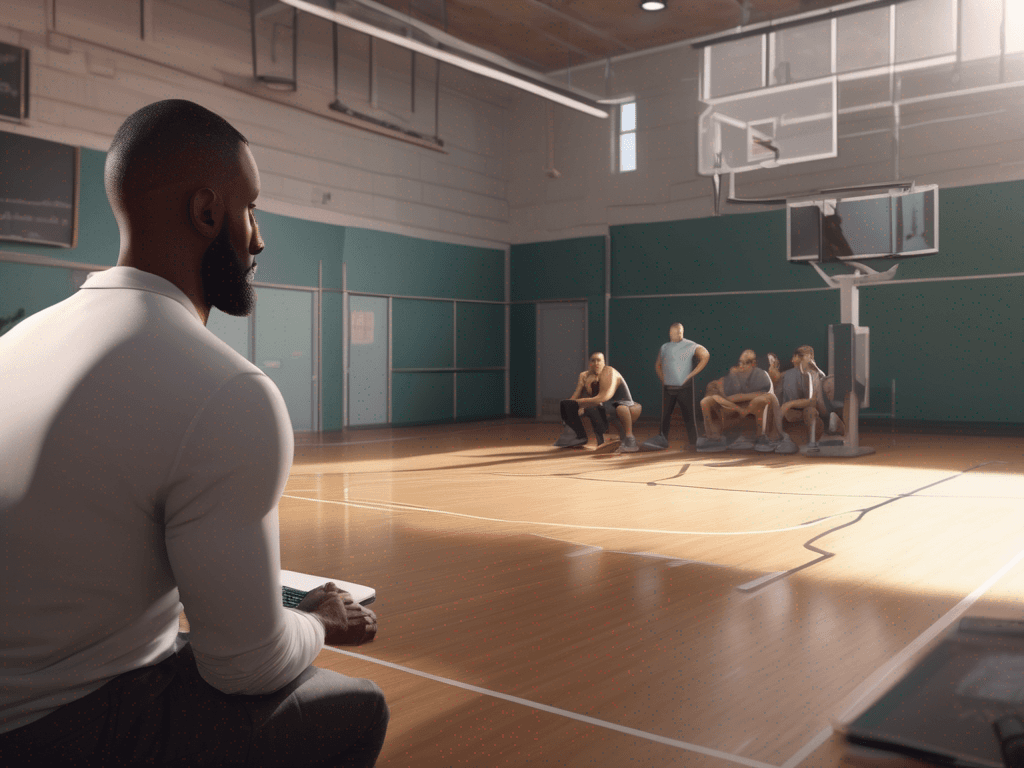
Basketball Coaching Software for Weekly Workflows
Learn how basketball coaching software fits into a coach's weekly workflow—planning drills, drawing plays, trimming video, scouting opponents, and sharing playlists.

Key takeaways
- Adopt a centralized basketball coaching software to consolidate weekly planning, drills, and scheduling.
- Grant role-based access to keep planning collaborative yet controlled, letting assistants contribute while you retain final control.
- Build and reuse a shared drill library to save prep time across weeks and programs.
- Link plays to scouting notes and weekly plans for quick adjustments during reviews and film.
- Use video clips and playlists to drive player feedback and clear next steps.
- Pre-build a week’s cadence to maintain consistency across teams and staff, even when short-handed.
Why basketball coaching software matters for weekly planning
As a head coach, the weekly planning process finally sits in one place. With basketball coaching software, planning, drilling, and scheduling merge into a single workflow in the practice planner. I map out the week, pull drills from the drill library, assign them to days, and lock in times. The roster management tool ensures the right players are assigned to the right drills, and substitutions are prepared. No more flipping between apps or sticky notes.
I let assistants view and contribute to the plan. They can add notes, tweak drill selections, or update rotations, all while I retain final control through role-based access. It makes sense for the whole staff to operate off the same plan, and the shared libraries across teams mean we can reuse high-quality drills without reinventing the wheel every season. This transparency keeps everyone aligned, from scout shifts to practice corrections.
The time saved is real, and the practices stay consistent. Pre-building a week’s worth of sessions in the drill library lets us run the same cadence across groups, with adjustments only where needed. The practice planner acts as the backbone for onboarding new coaches or interns and helps ensure every session mirrors our standards, even when we’re short on staff.
The true value shows up in the full workflow: plan, board, video, scouting, and playlists all connected. I refine a play on the tactical board, export a PDF for the staff, trim a clip for player review, and drop a scouting note into the opponent’s plan. It’s all tied back to the weekly plan, making it easier to stay intentional and move players forward—without leaving the software.
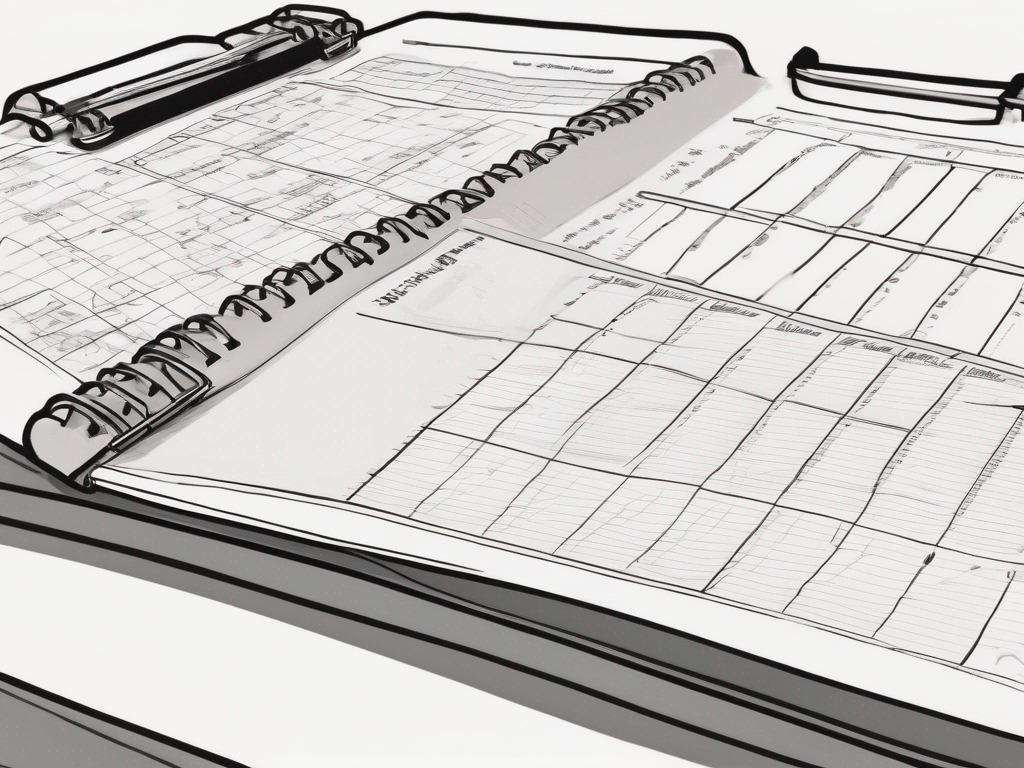
Building a reusable drill library and practice planner
As a coach who plans the week in the plan tab and builds a living drill library, I treat the catalog as a mission-critical resource. Each drill has a concise description and a quick visual, so assistants know what to run before stepping on the floor. On the tactical board, these drills map to exact actions, tying the plan to what we run every day.
Once a drill is in the catalog, I attach it to specific practice slots in the plan. My Monday session has a block for ball movement and another for closeouts; I pull in the matching drills and reorder them in seconds. The practice planner keeps us moving, and I include a short video links for each drill so players can study the details before practice.
Because the drills stay in a shared catalog, I reuse them across weeks and across seasons. If a shell drill works at the JV level and needs a tweak for varsity, I adjust once and it updates in every plan. This saves prep time and keeps our rotations consistent. I also tag drills by objective to make searching quick and precise.
For programs with multiple teams, the team library lets us share a single catalog across squads. Assistants pull from the same drills, adjust for different rosters, and keep the rotation maker aligned. When I update a drill's description or visuals, every team gets the update. This is how we scale planning—supported by roster management and a coordinated live timer on game day.
Designing game tactics with the play designer and whiteboard
During weekly planning, I rely on the play designer on the whiteboard. I drag-and-drop animated plays to build quick on-court sequences, so the team can see spacing and timing at a glance. The play diagrams populate movement and options, making it easy to adjust on the fly and slot them into rotation maker setups for later review in the team library.
Next, I create BLOB, SLOB, ATO, and PnR sequences and export them as PDFs for share-outs with the staff. The tactile flow—design, annotate, export—lets me map practice reps to game situations without endless photocopies. If a sequence needs a tweak between drills, I pull it back into the practice planner and re-export, keeping everyone aligned.
Linking plays to game plans and scouting notes is where the system earns its keep. Each play gets a direct connection to our opponent scouting write-ups and the week’s plan, so adjustments for tendencies are visible at a glance. When we review film, I tag clips and associate them with the exact diagram, turning a pretend concept into a repeatable decision during games.
Finally, sharing tacticals with staff is instant and secure. I generate protected links for assistants, coordinators, or scouts, with access controls that fit our roster management needs. It’s not about pushing a feature; it’s about keeping the team on the same page—play designer to whiteboard to PDFs to scouting notes—so the whole weekly workflow stays tight.
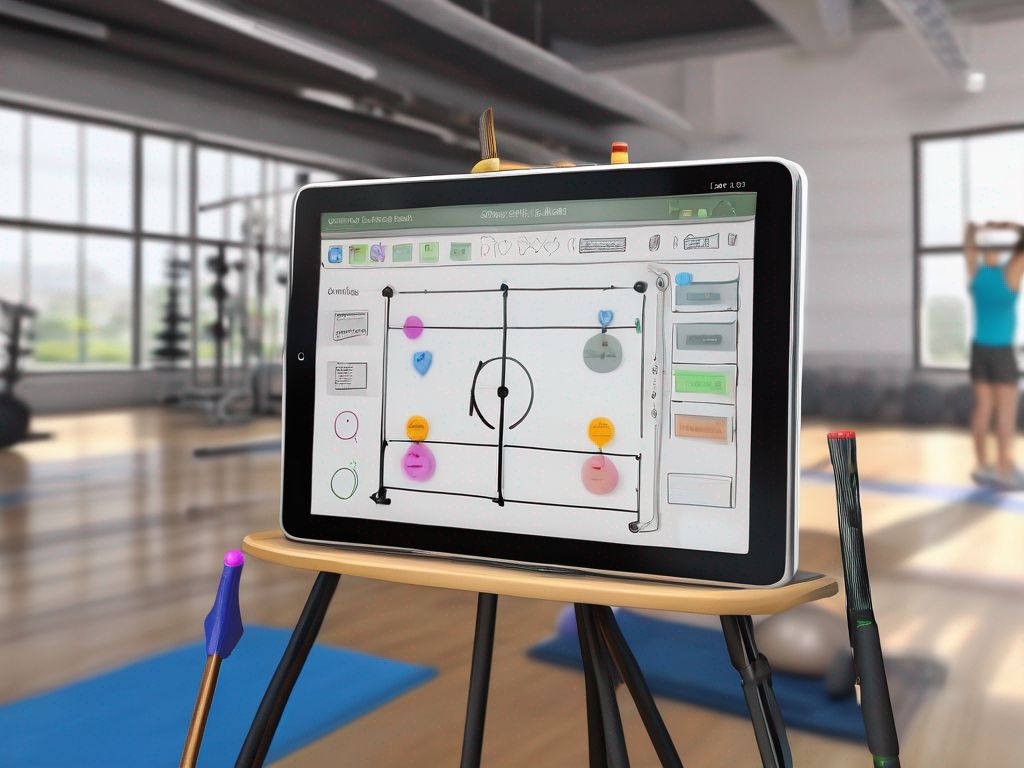
Organizing game and practice clips for player feedback
In my weekly workflow, trimming and organizing game and practice clips starts as soon as the video lands. With video integration, I trim to 12–20 seconds, label them by action, and drop them into the clip library. Each clip gets tags like "transition," "defensive rotation," or "PnR," so I can pull them when I’m building practice in the plan. This is where basketball coaching software shines, turning raw clips into a structured resource.
I attach clips to plans or play ideas for review. When I map out next week’s scout routine and walk the team through on the tactical board, I link the relevant clips to the plan’s sections. Assistants see the exact sequence during walkthroughs, and players get a clear sense of what to replicate on the floor.
I build a dedicated clip library for player feedback sessions, pulling from recent games and practices. Each clip is labeled by player and action, so we can review decisions quickly in the film room or on the sideline. This approach helps me track progress over the season without hunting through files.
I distribute clips via playlists and shareable links so players can study on their own time. After a session, I drop the linked playlist into the team chat and invite questions before the next practice. Clips end up in the team library, ready to fuel upcoming game plans and rotation decisions.
Scouting reports and opponent prep
Week starts with standardized scouting templates in the team library. I keep core fields identical across opponents: team name, key personnel, defensive looks, and the sets they rely on late in games. With this baseline, assistants can drop notes after every clip and still fit them into a single scouting report. That consistency saves time and reduces misreads. scouting templates | team library
I catalog opponent actions and tendencies: who triggers traps out of ball screens, how they rotate on weak-side, and when they pressure in transition. Each action is tagged with context—tempo, score, and lineup—so the notes align with your scouting reports and can be searched later in the team library. opponent actions
Those notes feed the game plan. In the plan, we map counter moves to anticipated situations, assign rotations in the rotation maker, and pull animated plays to illustrate the counters. When we test these in the practice planner, the counter-shell becomes a repeatable part of our weekly workflow. rotation maker | animated plays
Exporting clear scouting reports for staff is the finale of the cycle. The software lets you export PDFs or share a live link, with the key slides and notes visible to assistants, coordinators, and the head coach. The export keeps everyone aligned and reinforces the link between scouting and game plans. scouting reports | PDFs
On the floor, I pull the scouting notes into the tactical board before warmups, review the opponent prep, and assign clips to players' playlists. The flow—from scouting reports, through opponent prep, to a connected team library—keeps our weekly prep tight. opponent prep | team library
Sharing playlists and review links with players
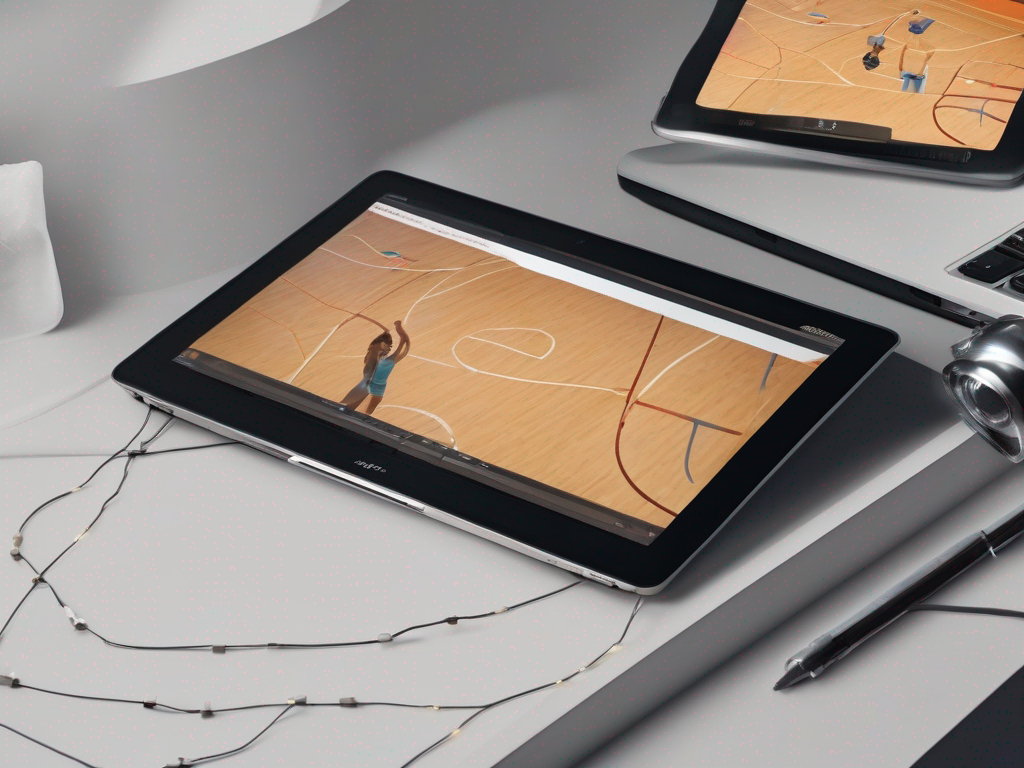
As a coach who already lives in the plan-board-video loop, playlists are the bridge between watching film and making it real on the floor. I start the week by assembling playlists of clips for targeted player review, pulling smart cuts from the team library and practice clips. Instead of dumping hours of footage, I give each player a focused set tied to our weekly goals—so video review happens with a purpose, not a chore.
To build a playlist, I filter by player, by action (PnR, off-ball movement, rotations), or by roster groups. I lean on the drill library, animated plays, and even the play designer to shape the clips into a clean narrative. Then I drop the selections into a named playlist—think “Help-Side Rotation 1” or “Transition Spacing”—and keep it linked to the week’s plan for easy reference.
Sharing playback links with players and guardians as needed is simple and intentional. A quick link from the dashboard lets me push video review to the right people without extra steps. Players get a concise walkthrough of what to watch, and guardians can stay in the loop when appropriate. This isn’t a one-off clip drop; it’s a built-in part of the weekly workflow.
From the dashboard, I track engagement and progress: who watched which clips, how long they spent, and whether they translated it into on-court actions. The data guides tweaks to the plan and the upcoming playlists, ensuring we stay on-track with the weekly objectives. When a player finishes a playlist, I have a clear read on accountability and readiness.
In short, ready-to-review content keeps players focused, coaches aligned, and the week’s plan cohesive across video review, scouting notes, and on-floor execution. This is where playlists become a performance tool, not just a library of clips.
Practical workflow: from plan to practice
As a coach who lives in a weekly cadence, I kick off with the Practice Planner to map the week. Step 1: Create the weekly plan in the Practice Planner. I outline objectives for each session, load time blocks, and drop in essential drills from the drill library. This turns vague goals into a concrete plan to practice.
Step 2: Design plays and tag them to drills. In the design phase, I rely on the play designer to sketch animated plays and tag them to corresponding drills from the drill library. Having plays linked to drills keeps our play designer work tight and our sessions flowing.
Step 3: Schedule drills and assign to sessions. I schedule drills and assign to sessions using the rotation maker, while roster management ensures the right players are on the right stations.
Step 4: Attach relevant clips and scouting notes. I attach video clips tied to the plan and add scouting notes for each drill so players see the context, not just the technique.
Step 5: Export a PDF plan for staff and print layouts. The PDF export keeps assistants aligned and makes it easy to print layouts for the sideline during walkthroughs.
Step 6: Share playlists and track follow-through during practice. I push playlists to players for review and track follow-through as drills unfold on the floor. This loop supports plan to practice and strengthens practice execution, closing the gap between planning and on-court results.
If you build plans like this every week, CourtSensei keeps your drill library, tactical board, and video clips in one workflow - start free.
FAQ
What is basketball coaching software and how can it improve my weekly workflow?
Basketball coaching software is a centralized platform for planning, drills, scheduling, and player management. It brings your plan, the drill library, and the practice planner into one place, along with video notes and scouting. Coaches map the week, assign drills, and lock times without flipping apps. The result is consistency, easier onboarding, and clearer staff alignment.
How do private basketball coaches manage session bookings with this software?
You manage bookings through an online calendar and client portal. Players or families pick time slots, pay if needed, and receive reminders. The system handles cancellations, rescheduling, and sharing notes with you or assistants. The result is less back-and-forth emails and a cleaner, more predictable weekly cadence.
What is a credit-based booking system and why do trainers use it?
A credit-based booking system uses purchasable credits to reserve sessions. Each slot costs a fixed number of credits, letting you scale across locations and vary durations without changing prices. It delivers simplified billing and clearer access control for multiple programs.
Is basketball coaching software only for basketball coaches, or can other staff benefit?
It's not limited to head coaches. It's built for coaches, assistants, interns, and even scouts. The system supports multiple roles with access controls and collaboration. A shared drill library and role-based access keep everyone aligned, while you control who edits plans vs. who reviews notes. It scales as your program grows.
Can I use basketball coaching software if I train at multiple locations?
Yes. Most platforms support multiple locations with location calendars and per-site rosters. You can share a single drill library across sites, adjust rosters per location, and keep plans in sync. It minimizes duplication and maintains consistency whether you practice at a gym, school, or club.
How long does setup take and what is onboarding like?
Setup typically takes days, not weeks. You will import rosters, build a starter drill library, and tailor week templates. Most platforms offer guided onboarding, templates, and video tutorials, plus live support. With clear steps and a hands-on kickoff, you will have a usable system in your first week.