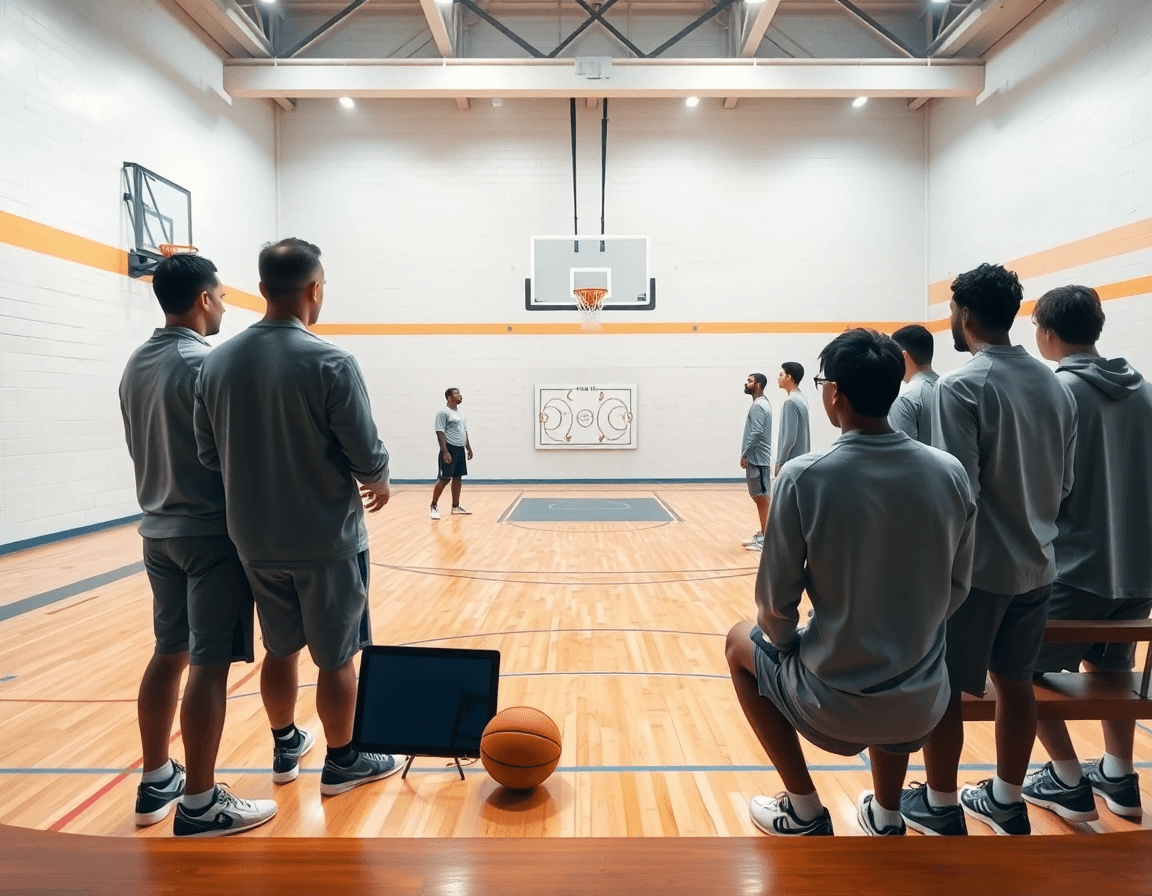
Basketball Drills App: A Coach's Weekly Workflow Guide
Coach-focused guide to using a basketball drills app for weekly planning, video feedback, progress tracking, and scouting across HS to semi-pro programs.

Key takeaways
- Assess the basketball drills app by its library depth and progression to support weekly goals.
- Prioritize offline capability and reliability for field use, with seamless Practice Plan imports.
- Design workflow loops: import drills into the plan, diagram on the Whiteboard, add video context.
- Create templates for top drills and reuse them across weeks for consistency.
- Leverage progress analytics and team dashboards to align staff and drive decision-making across practices.
Evaluate a basketball drills app for your weekly plan
When I evaluate a basketball drills app for my weekly plan, I start with the goals. This week is about skill development for our guards and getting ready for the next game. The app has to slot into my flow, not derail it. I look at the drills library first—do we have enough progression and variety to support a solid training plan, from basic ball-handling to game-like decision drills?
Next, I test export/import capabilities, offline access, and device compatibility. If I can pull a drill into a Practice Plan offline on a gym tablet, that’s a win. I rotate between laptops and iPads in the field, so reliability matters. I want to know I can work without WiFi and still keep the player notes intact.
Then I look at how well it plays with my workflow. Can I import drills into Practice Plans, diagram them on the Whiteboard, and attach a quick Video Clip for context? If the app sits inside CourtSensei, I want smooth hooks to our scouting notes and playlists. The goal is a tight loop, not a maze.
Pricing and analytics matter when I scale to a team or staff. I’m looking at usage insights to gauge adoption, and whether licensing covers coaches or administrators. If the app supports progress tracking across drills and workouts, it earns a thumbs-up. In the end, a solid fit means CourtSensei can act as the hub, letting me build weekly training plans with confidence.
Integrate drills apps into weekly practice planning
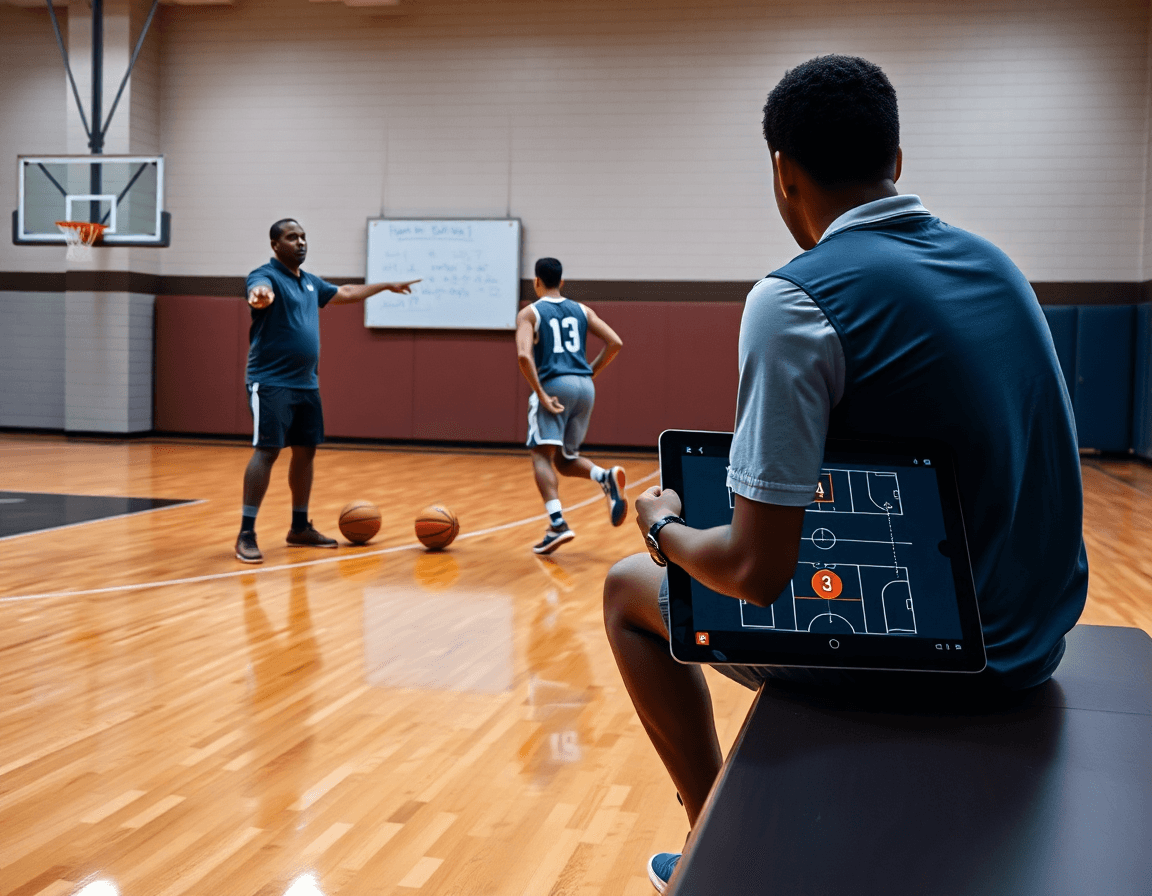
As a head coach, you want your weekly plan to flow from one day to the next. Start by mapping external drills into a structured Practice Plan within CourtSensei. With a single import, you pull drills from your drills app into the plan for the week’s sessions, tag them by focus, and assign them to the appropriate days. Think of it as a living library in your practice planner—where drills app integration keeps your content current and repeatable across weeks.
On the plan, use the Whiteboard to diagram drill actions (BLOB/SLOB/ATO/PnR) referencing the app drills. Use the shorthand to map how players move, when to switch sides, and where space opens up after a read. Keeping the diagrams aligned with the coaching points helps assistants execute with the same language. This is where the workflow clicks: the Whiteboard becomes the visual playbook that anchors your weekly planning.
Next, schedule drill blocks within the Practice Plan and link each block to its related video clips. A quick eight-minute block on ball movement sits next to a clip from the drills app, so players can review the exact technique after the session. With the linkable videos, you cut down on questions and speed up retention. For the coach, this is the connective tissue between planning, execution, and review—accessible from the same workspace.
Finally, build templates for your top drills so you don’t reinvent the wheel each week. Save a set—shooting progression, ballhandling sequence, transition reads—and reuse it across games and practices. When a new opponent pops up, swap in the relevant drills from your library, keeping weekly planning efficient and consistent.
Leveraging video drills to boost player development
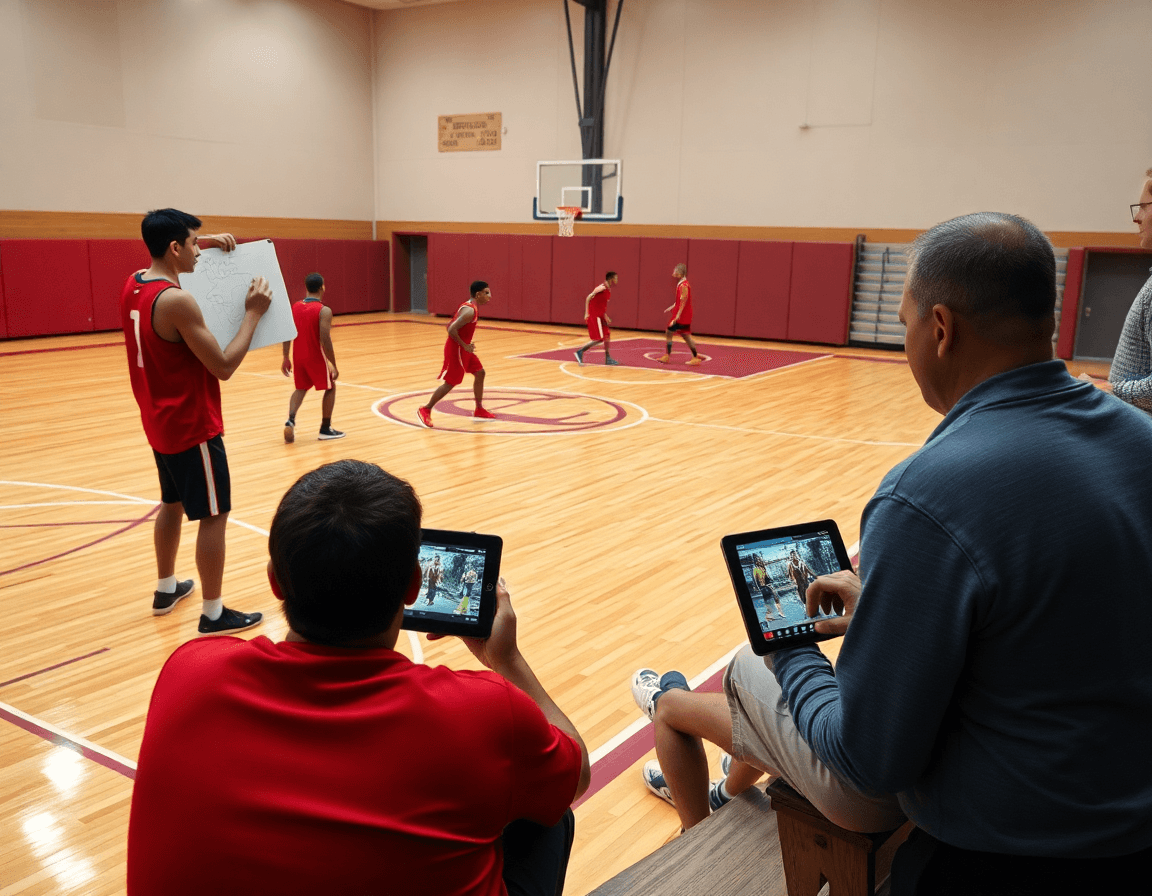
During the weekly plan, I pull the top video lessons from the drills app and drop them into the Practice Plans as checkpoints. I also assemble targeted playlists for different players—one base set for guards, another for bigs—so the coaching staff is aligned on what to review every session. This keeps tempo consistent and speeds up feedback loops.
On the court, I pull a clip and diagram the drill on the Whiteboard, tagging the action as BLOB/SLOB/ATO/PnR and dropping quick coaching cues. I attach a brief note to the clip so assistants know the emphasis—footwork, spacing, decision making. It turns the digital library into a tangible teaching moment.
Once the clips are annotated, I share secure playlists with players via shareable links and set viewing permissions. I can see who opened which clips and when, feeding into progress tracking and accountability. The players stay in the loop, and I stay informed about who has revisited what.
Picture a Friday practice: a guard watches a 20-second video clip showing a clean attack step. I annotate the action on the Whiteboard and attach a cue card to the clip. The player repeats the move, then re-watches the clip from the playlist to lock in the adjustment. That simple sequence—video clips feeding into playlists—drives real player development.
From app data to scouting: tracking progress and opponent prep
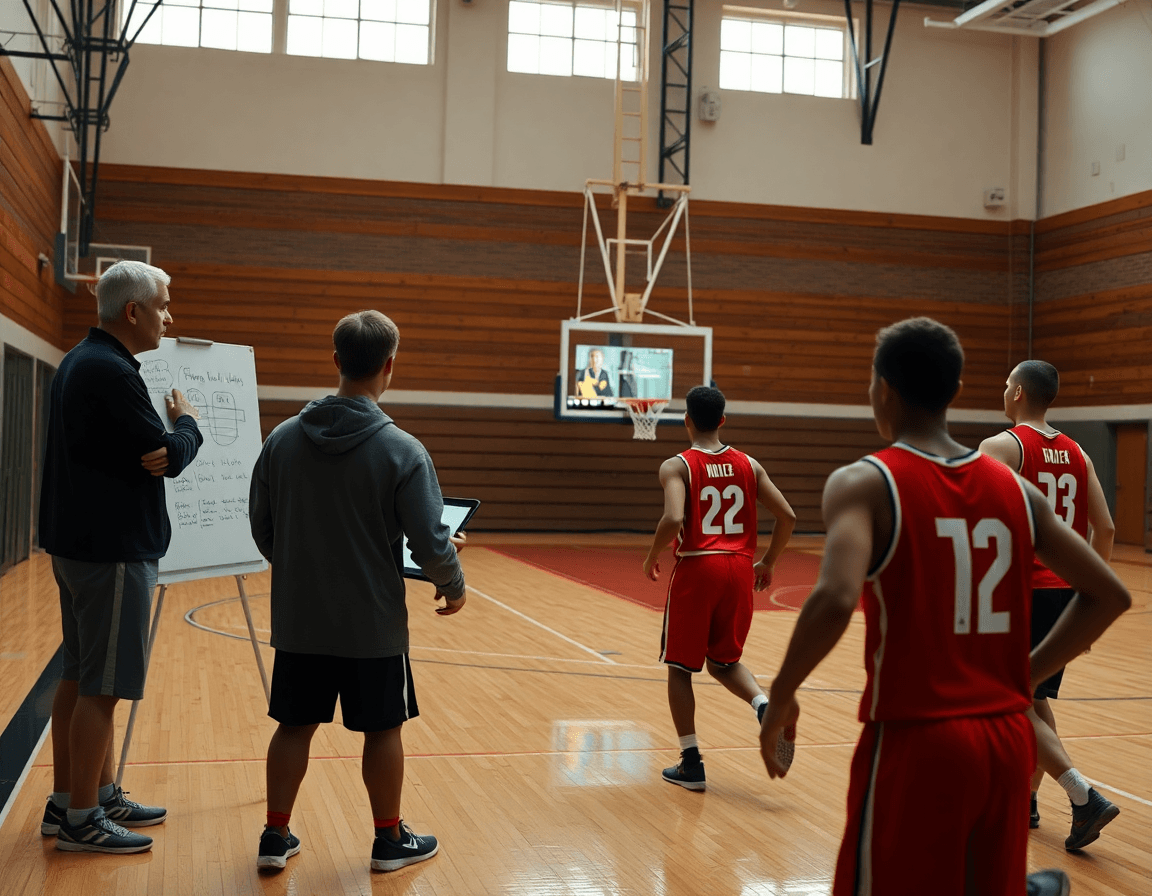
Once practice is wrapped, I pull data from our basketball drills app and drop it into the weekly workflow. Importing progress analytics into our team dashboards gives me a real-time read on which drills moved the needle, which players are ahead of schedule, and where we need to push. In practice plans, I map out the next week’s workouts around these insights, keeping the pace steady with what the numbers say. This is the backbone of the weekly cycle: I capture reps, clip efficiency, and measure decision-making so the staff can see the trend lines at a glance. We rely on progress analytics and the team dashboards to keep the entire staff aligned.
From there, I translate the drill data into scouting outputs. I build concise scouting notes and counter-action plans for upcoming opponents, tagging clips that illustrate tendencies I want players to study. The drills app feeds these notes by linking specific plays and decision points to our opposition game plan. When I dump a few example sequences into the Whiteboard, I diagram a defensive rotation or an offensive counter, and attach the relevant video clips for quick review. This is how opponent prep becomes actionable in practice and film sessions.
To keep it steady, I maintain a weekly scouting section within the plan. Each Sunday I update the plan with a new opponent page, summarizing tendencies, key actions, and our counter-reads. It’s not a slog—it's a tight set of notes that travels with the practice planner and the video library. I attach fresh clips, link to the relevant plays, and map those insights to the upcoming workouts, so players see a clear throughline from prep to execution. This consistency makes the team confident when they step into the game with a ready-made counter-book.
All of this circles back to the bigger picture: the analytics are not just numbers. They fuel smarter video lessons and quick on-floor decisions. If you lean into an AI coach-driven read on trends, the coach’s edge grows, but the real win is keeping a tight loop between the drills app, the scouting notes, and the practice plan. CourtSensei acts as the hub that keeps progress visible—so when you publish playlists for players, they follow a clear path from drill to game day.
60-Minute Weekly Workflow for Planning, Video, and Scouting
Starting the week with a tight 60-minute window keeps our planning sharp and synchronized. In the first 10 minutes, I pull drills from the drills app and assemble a cohesive Plan in Practice Plans. I’ll pick 5–6 drills that hit our main themes for the week and assign them to players and sessions. My assistant notes coaching cues and progress marks, giving us a clean record for progress tracking.
Next, I spend 15 minutes diagramming plays and actions on the Whiteboard. We map out BLOBs, SLOBs, ATOs, and PnR so the team can visualize reads in real time. A quick export to PDF keeps the diagrams shareable for film sessions and pre-practice walkthroughs.
I then curate game and practice video clips, trimming for clarity and tagging by player. In short videos, I drop clips into Playlists for each player, so they can study cues on their own time and come ready to practice. This ties directly into the plan and helps with progress tracking as players check off each clip they study.
Finally, I summarize opponent tendencies for the next week in the Scouting Reports. I pull trends from last week’s footage and notes: primary ball handlers, weak spots in pick-and-roll defense, and typical late-game sets. This keeps the scouting compact and actionable, while the AI coach can surface a few drills or counter-plays aligned with our Plan.
Best practices for sharing, collaboration, and feedback
Best practice starts with two essentials in your weekly workflow: playlists and shareable links. Create a set of playlists for each training week—drills, workouts, and scouting reveals—and publish them to the team with clear permissions. For assistants and volunteers, give edit access; for players, keep it view-only when appropriate. This keeps everyone aligned and reduces back-and-forth emails.
Use private channels for coaching feedback and drill annotations. After practice video or clip edits, leave comments in the thread rather than in scattered chat apps. Annotate critical reps on the whiteboard as you talk through decisions, and attach those notes to the corresponding clips. This creates a traceable conversation that players can review before the next session.
Keep a central library up-to-date and align on template updates. Periodically refresh drill sets, update naming conventions, and unify on how you tag progress. When your library is clean, coaches can pull plays into Practice Plans quickly, and players see a consistent, predictable flow across workouts.
Leverage progress tracking and an AI coach to fine-tune the plan. Track what drills move the needle and adjust quickly, without rewriting the week. Pair video lessons with your scouting notes so the team can study together, even when they’re apart. A focused loop between plan, video, and feedback accelerates growth.
Example: Monday morning, you publish a new playlist for the week and share it via links to your staff. After practice, you upload clips, annotate decisions on the whiteboard, and drop quick notes in the private channel. By Friday, your scouting sheet mirrors the team's progress and your players are ready for the next cycle.
If you build plans like this every week, CourtSensei keeps your drill library, whiteboard, and video clips in one place — try it free.
FAQ
How do I pick the right drills app for my level and goals?
Start by matching your level and goals to the app's drills library and progression paths. Look for a robust drills library with skill-building sequences from basics to game-like scenarios, and clear progression charts. Check how easily you can slot drills into your weekly plan, export them to practice sessions, and track improvements over time. Reliability and offline access matter too.
Do these apps require a subscription or are there free tiers?
Most solid drills apps offer a free tier with basic drills, but full functionality usually requires a subscription. Look for clear pricing, what each tier includes, and whether teams get admin access. If you’re integrating into a weekly workflow, confirm trial options and scalable licenses for coaches or staff.
Can I see my progress and performance analytics in the app?
Yes. The best apps expose progress analytics and dashboards that track reps, drill completion, and efficiency. Look for per-user and roster-wide stats, trends over weeks, and export options for team reviews. If your weekly plan hinges on data, verify you can map analytics to Practice Plans and scouting notes.
Are these apps available on iOS and Android, and can I train offline?
Yes—most leading apps run on both iOS and Android, with syncing across devices. For field use, ensure you can train offline: download drills, save notes, and access video clips without Wi-Fi. Also check how updates sync when you reconnect.
Do these apps include AI coaching or access to real coaches, and can teams use them for remote workouts?
Many apps offer AI coaching features and/or access to human coaches, but options vary. For teams, verify multi-user licenses and remote workout support: shared plans, synced video libraries, and the ability to assign drills to players remotely. If you want real-time feedback, confirm live coaching availability.
How many drills are available in the top basketball drill apps, and can I create my own workouts?
Top basketball drill apps typically include hundreds to thousands of drills. Look for advanced search, tagging by skill, and the ability to build your own templates. Creating custom workouts lets you stack sequences, adjust intensity, and save them for weekly planning. That keeps your practice blocks fresh.