
Basketball Play Designer App: Weekly Coach Workflow
Discover how a basketball play designer app fits a coach's weekly workflow—from planning and diagramming plays to scouting opponents and sharing with the team.

Key takeaways
- Kick off each week by mapping opponent scouting into clear objectives in the play designer app, with measurable targets.
- Diagram plays using drag-and-drop, tag actions BLOB/SLOB/ATO/PnR, and export printable diagrams for staff.
- Collaborate with assistants via cloud sync and shared drafts, collecting notes to refine priority actions.
- Export a ready plan to PDF and reuse a centralized library to deploy plays for next sessions.
- Link scouting to plays and organize by opponent to pull counter options during tight weeks.
Weekly workflow: plan, diagram, and deploy plays
Kick off the week by reviewing opponent scouting and defining objectives for your playbook. In my weekly workflow, I pull scouting integration into the planning phase using a basketball play designer app. I mark what we need against the opponent—pace, spacing, and primary actions—and map that to a clear objective for our plan plays. This keeps the week focused and measurable.
Then I shift to diagramming on the tactical whiteboard. Using the app, I draft plays, tag actions (BLOB, SLOB, ATO, PnR), and drop them into our master library. The diagram plays, supported by a smooth drag-and-drop workflow, makes it easy to sketch motion diagrams, swap out options, and export a printable diagram to PDF for assistants. We reference draw basketball plays in the play designer to keep everything legible.
Next, collaborate with assistants by sharing drafts and collecting feedback before practice. Drafts stay in the cloud to enable cloud sync, and assistants can leave notes, tweak sequences, and align on priority actions. This is where the playbook grows; you can share plays with players in playlists, and tag which clips correspond to each option. The result is a more cohesive unit heading into the session.
Finally, close the loop by exporting a ready-to-use plan for the next week's sessions. With a final PDF export, the coaching staff gets a clean practice plan, diagrams on the board, and associated clips in a playlist ready to deploy plays to players. On game day, you can call up the same library and flow into the scouting reports for quick adjustments. The play designer app keeps the cycle tight.

Design plays with precision: drag-and-drop and action cues
Within the weekly plan, design plays with precision using a drag-and-drop interface to sketch sets, screens, and movement with clear BLOB/SLOB/ATO/PnR action cues. Imagine a top-of-the-arc setup where your point guard reads the floor, triggers a curl-screen, and the roller pops to the rim. You drag players into position, drop a ball-screen, and attach reads like 'shoot if the window opens' or 'pivot to the weak side' so assistants know exactly how to run it. This isn’t sloppy chalkboard work—it’s repeatable rhythm you can test in practice and adjust on the fly in your plan. This design lives in the plan and on the tactical whiteboard, so assistants can reproduce it in practice.
Next, lock in your play templates and annotate key reads for players. A library of reusable designs lets you dial up a set against a specific opponent and still keep the same tempo. For example, a PnR with a slip and a counter option becomes par for the course, but the reads are labeled for when to switch to a flare or to slip back for a corner three. You can reuse the skeleton, just adjust spacing, timing, and the reads without recreating the diagram each week.
Use a PDF export to distribute diagrams, or share instantly with staff and players. The PDFs preserve the motion, spacing, and reads in a clean document you can print for the huddle or email to assistants. With cloud sync, the latest diagrams stay in sync across devices, so everyone on the staff and every team works from the same playbook. In your weekly workflow, the play designer app becomes the hub that ties planning, diagramming, and distribution into one smooth cycle.
From play design to practice plan: turning diagrams into drills
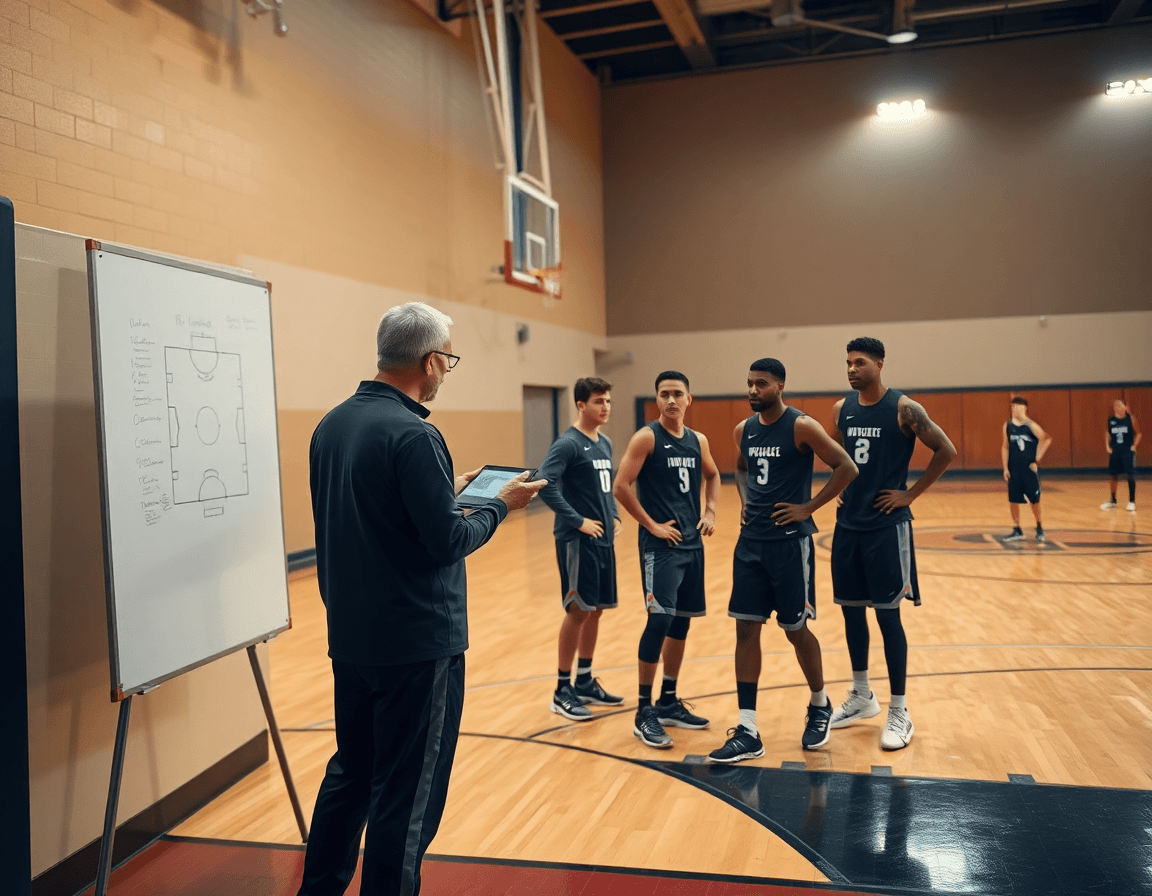
From play design to drills starts with attaching plays to the right spots in the practice plan. In CourtSensei, you can attach plays to specific practice segments and progression goals so each diagram has a real purpose. I pull a BLOB or PnR sequence from the playbook library, drag-and-drop it into the drill block for the day, and add a short cue for the players. A quick video clip shows the action, so assistants can study tempo and spacing before we step on the court. On the floor, we progress from breakdown to full-speed reps and decision-making under pressure.
Organize plays by team and season so every group has a tailored plan. In the dashboard, I group by season and squad—varsity, JV, or freshmen—so each unit owns its own progression goals. This isn’t a one-size-fits-all file; it’s a living plan that evolves with the calendar. Tie the drills to weekly scouting notes and shift the same plays across weeks as we build familiarity. If needed, export a clean PDF from the play designer to share with staff or print for the binder; cloud sync keeps everyone on the same page.
Use the library to assign plays to players and track progress. With the library, you can assign plays to individuals or groups and monitor who has mastered each action. I tag a pick-and-roll setup for a guard and a wing as part of that week’s progression, then watch who revisits the clip and who logs reps in the film room. The workflow stays tight: plan on the plan, diagram on the whiteboard, and review in the scouting notes. Shareable links let assistants and players access the same plays, and quick updates keep the group aligned.
Scouting integration: linking opponent scouting to your plays
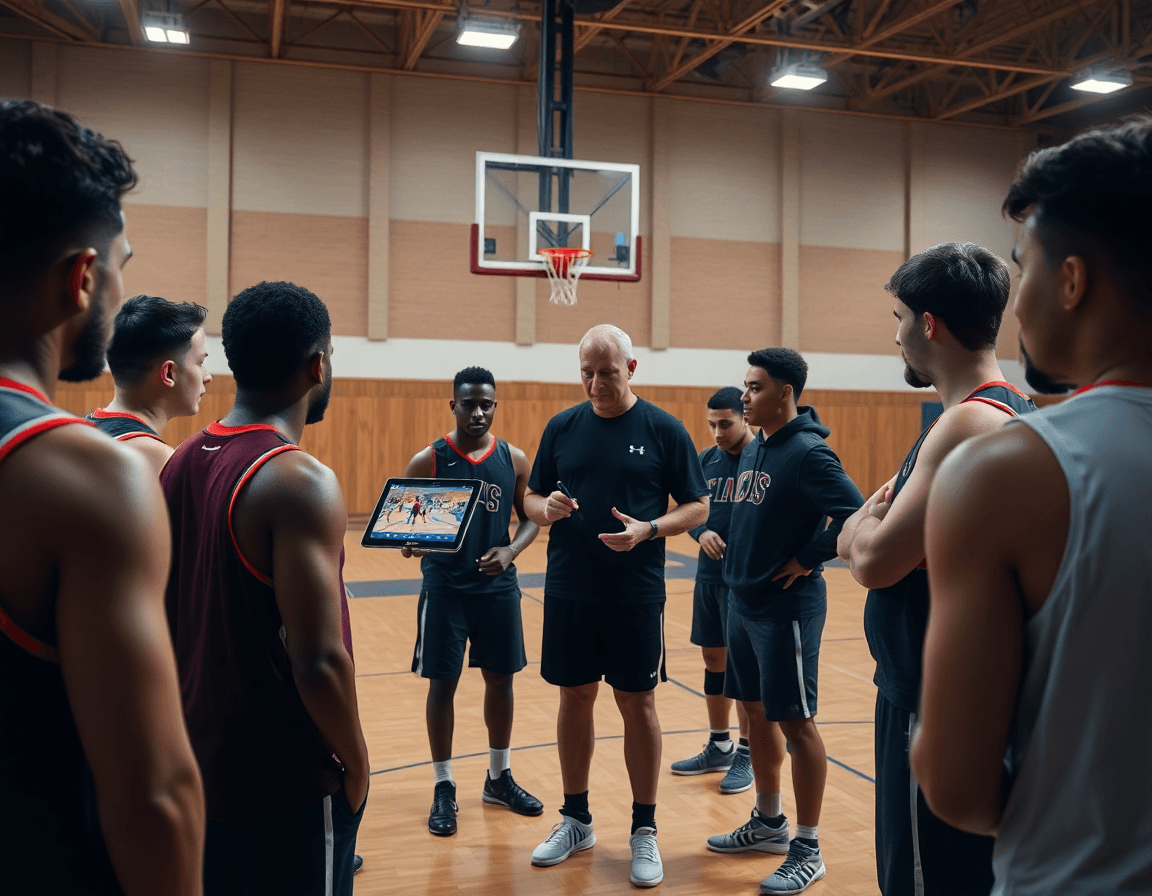
As a head coach, I start the week by turning opponent breakdowns into actionable steps for our practice plan. I pull together clean scouting reports that summarize habits, sets, and leverage points, then I map those actions to counter plays on the tactical whiteboard. Keeping everything organized by opponent helps our assistant coaches stay in sync, and makes it easy to pull the exact counter you need during a tight week.
With the basketball play designer app, I import those scout plays into our playbook, tagging them to the opponent and season. This is where the workflow shines: when I open a plan, I can easily link to plays that illustrate the action for players and assistants. We use drag-and-drop to assemble sequences from scout takes to on-court diagrams, and we generate clean PDFs for staff meetings.
Filter by opponent and season to keep the library lean. I can pull up every relevant counter in a single screen, compare last year’s game to this year’s, and annotate what worked. Then I attach those PDF export versions to the scouting notes or share via cloud sync so the staff has the latest version anywhere, anytime. The integration means your plan stays current with each opponent’s evolution.
On game week, those scouting links stay living in the plan: I drop a short clip of a scout action into a play’s diagram so players see the motion in context; staff can quickly distribute updated plays via share plays, and everything remains accessible through drag-and-drop across devices. The result is a clean, repeatable weekly routine that ties scouting directly to our plays.
Video clips and player feedback: clip, organize, share
In my weekly prep, I start with Video clips from game and practice footage that maps directly to our playbook. I pull clips from the latest scrimmage, trim to the exact action—handoffs, ball screens, and cutting angles—and clip and organize them into clearly labeled playlists. In a basketball play designer app, I’ve got a playlist for each concept, like Motion 4-Out or PnR Reads. The cloud sync keeps my assistant and me aligned, even when we’re on different courts. Those clips become the visual anchors I reference when installing a new concept on the floor.
Each clip gets annotated notes that call out reads, spacing, and decision points. I use drag-and-drop to place arrows and text right on the frame, then I share clips with players and assistants for feedback. We review in a quick film session and collect input: what did you see, what reads were unclear, what needs adjusting? That feedback loop—clip and organize, then discuss—drives updates in the play designer and keeps everyone on the same page.
Those highlights stay tied to the specific plays in the plan, so players see the exact action when the diagram updates on the board. I generate short video clips and captions that reference the play ID, then add them to the appropriate playlists. For scout prep or game night, a quick PDF export of the highlights plus the diagrams makes it easy to share with assistants or opponents. The workflow—clip the action, organize by play, share with the team—keeps our play designer approach cohesive across practice, meetings, and film sessions.
Deliverables and distribution: PDFs, playlists, and cloud access
Deliverables flow is a core part of the weekly cycle. When you’re finalizing the plan, export PDFs of your playbook for print or offline viewing. A clean, pocket-sized reference helps you walk through your Xs and Os with an assistant during a late-night run-through, before you hit the gym. The PDFs should reflect your library of plays, the motion diagrams on the whiteboard, and the linked notes from your scouting reports. This is where the term PDF export really earns its keep, turning your practice plan into something tangible for the staff.
Within CourtSensei, you can assemble game clips into sharable playlists with a simple drag-and-drop workflow. These playlists let assistants and players quickly review the exact sequences you want; you can generate shareable links so everyone has access without juggling files. With cloud sync, those playlists stay current across devices—phone, tablet, or laptop—so a player can pull up a clip on the bench or back at their dorm.
Organize by team and season to simplify weekly distribution. When you set up the structure in CourtSensei, your weekly plan lands in the correct folder—no more hunting for last season’s items. A simple search by team or by season helps you pull the exact play or clip you need for Monday’s meeting. This approach keeps everyone on the same page, from the head coach to the assistant who runs the stats and distributes the clips after the game. Use the organize by team and organize by season workflow to keep your weekly toolkit razor-sharp.
If you build plans like this every week, CourtSensei keeps your drill library, whiteboard, and video clips in one place — try it free.
FAQ
What is a basketball play designer app?
A basketball play designer app is a coaching tool that lets you plan, diagram, and manage plays in one place. You build plays, tag actions (BLOB, SLOB, ATO, PnR), and store them in a central library. It turns chalkboard ideas into repeatable, shareable workflows you can attach to practice plans and pull up for quick deployment.
Which basketball play designer app is the best for my team?
The best basketball play designer app for your team depends on your needs: platform, budget, and how you work. Look for a smooth, intuitive interface, cross‑device access, and strong sharing options. Prioritize features like cloud sync across devices and a reliable drag-and-drop diagram workflow, plus quick exports and opponent scouting integration to inform weekly plans.
Can I export basketball plays as PDF?
Yes. Most apps support PDF export so you can print diagrams or email a clean plan to assistants. PDFs preserve motion, spacing, and reads, and you can attach clips or notes to each diagram. This makes huddles simpler and keeps practice plans aligned, whether you’re on the court or in the staff room.
Do these apps support sharing plays with my team?
Absolutely. Most play designer apps offer cloud sharing and shareable links so coaches, assistants, and players can access the same plays. You can leave notes, compare versions, and track who has reviewed each option. It keeps feedback centralized and lets you update the plan in real time as practice schedules shift.
Are there free basketball play designer tools?
Yes, there are free tiers and trials available, but cross‑feature access is often limited. A true free option can cover basics, but may cap exports, cloud storage, or the number of active plays. If your season grows, you may hit those ceilings and move to a paid plan. Weigh feature access, user limits, and support against cost to pick the right entry point.
Is there a play designer app for Android?
Yes—there are Android options, but cross‑platform support varies. If you’re on Android, look for an app with a companion iOS or web version that cloud syncs across devices so staff stay aligned. Confirm exporting capabilities and that you can access the same diagrams on every platform.