Basketball Playmaker App: Weekly Coach Workflow
Explore how a basketball playmaker app fits a coach's weekly routine—design plays, plan practices, diagram actions, and share clips with assistants.

Key takeaways
- Adopt a WEEKLY TEMPLATE in the basketball playmaker app to align practice goals and scouting notes.
- Leverage the DRILLS LIBRARY and drag-and-drop interface to assemble offensive sets quickly.
- Export plans as PDF and share with staff to ensure alignment with OPPONENTS and roster needs.
- Clip, tag, and build PLAYLISTS from video to drive concrete takeaways during practice.
- Create centralized SCOUTING NOTES tied to specific plays and drills for actionable prep.
Weekly planning with a basketball playmaker app
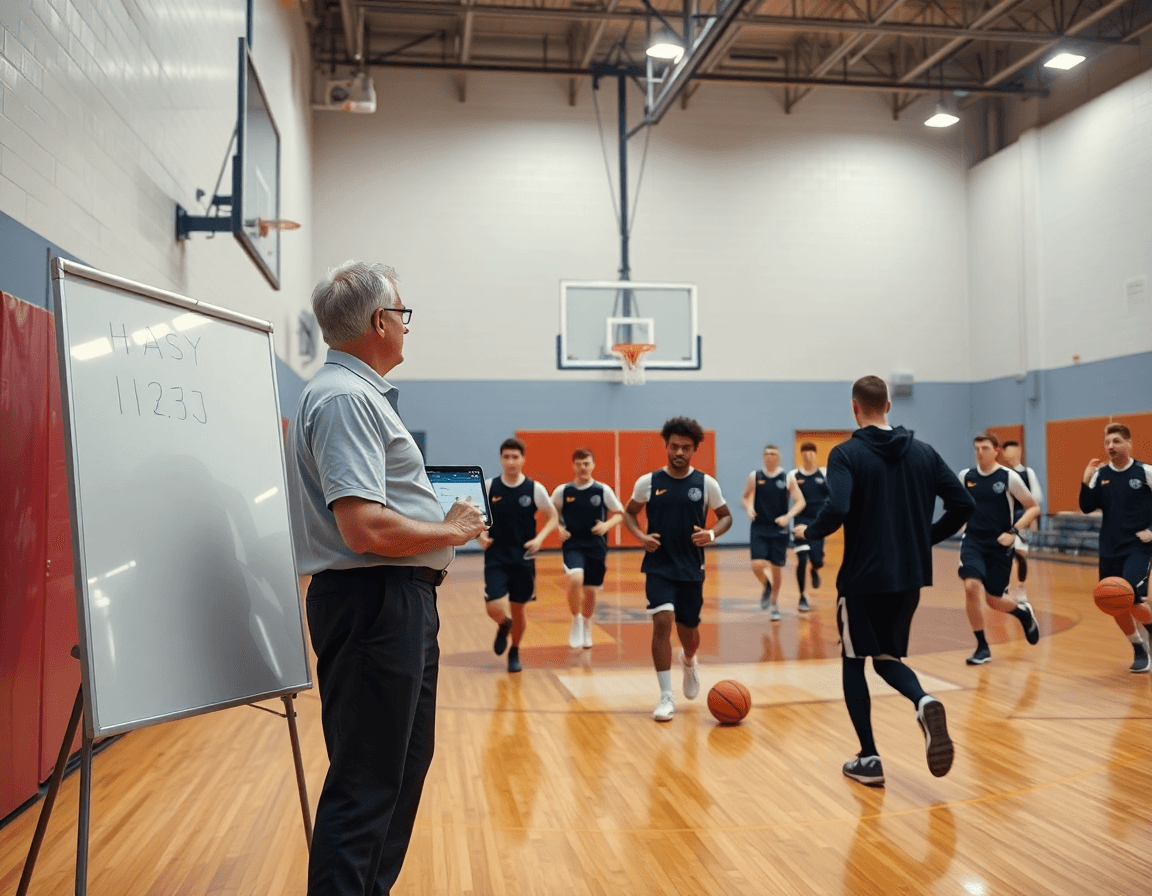
As a head coach building a weekly rhythm, I start with a standard weekly template in my basketball playmaker app. It defines practice goals, skill focus, and scouting notes in one place, so the week stays on track. For example, we structure Monday through Saturday around ball handling, spacing, and decision-making, with a quick review session to close the week.
To save time, I populate sessions from a library of drills and plays and tailor them to our personnel. The drag-and-drop interface lets me assemble offensive sets quickly, and I sketch the sequence on the whiteboard to visualize concepts before we pull the team into drills. The library keeps reps consistent across groups.
Each week, I assign tasks to assistants, set milestones, and export the plan as PDF for staff. Alignment is key: the plan ties practice objectives to upcoming opponents and roster needs, so we can balance skill work with defense, conditioning, and scout prep.
Beyond planning, the workflow touches video and scouting. I clip and organize game footage, build scouting notes, and publish shareable playlists of clips for players and staff. In this one coach-friendly interface, you move from plan to tactics to video in a single, searchable workspace.
Design and diagram plays on the whiteboard
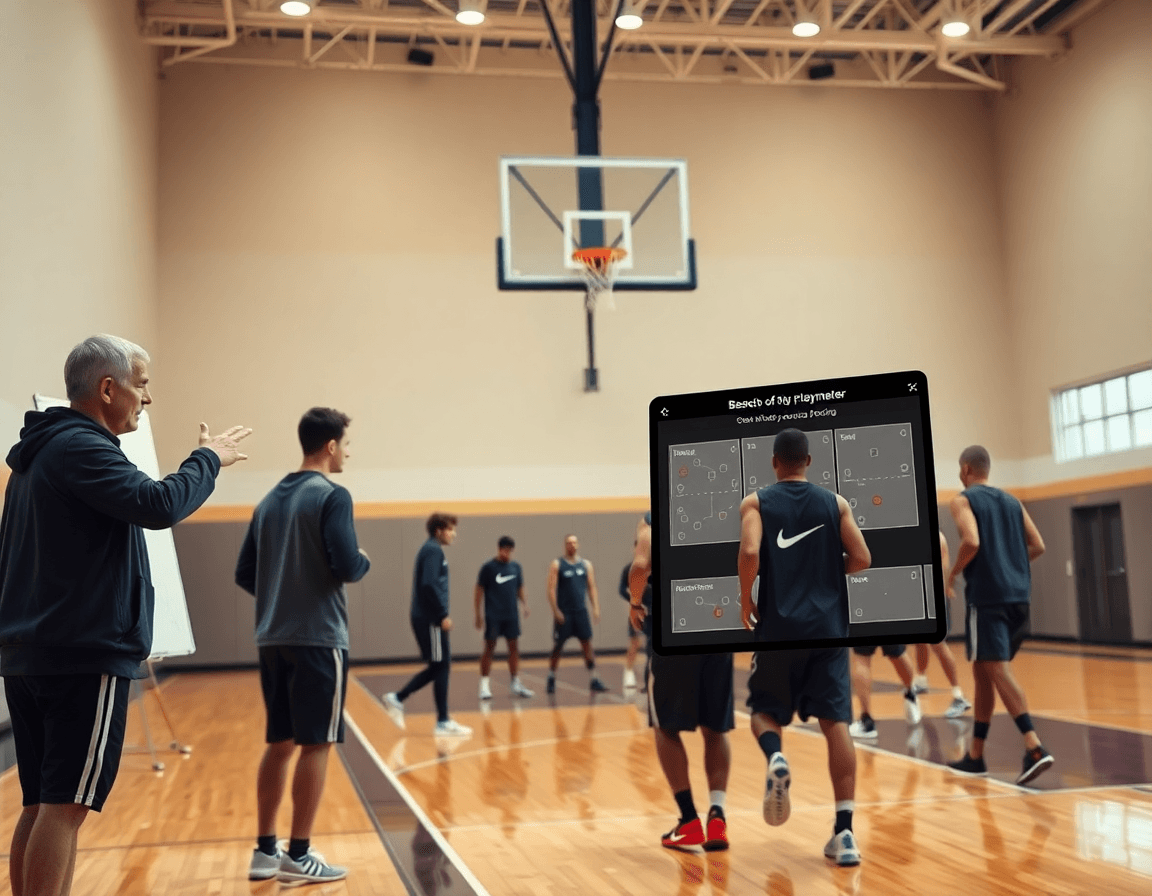
My weekly planning starts at the whiteboard. I drag-and-drop avatars for offense and defense to sketch sets, press-breaks, and counter moves, then drop in set action sequences (PnR, ATO) to test different looks. The interface makes it easy to swap players, adjust spacing, and quickly save a few variations. It’s the backbone of diagram plays in the basketball playmaker app.
Next I annotate timing, passes, cuts, and movements directly on the diagram. A few color codes show outlet passes, back cuts, or staggered screens, and I save the sequence as a playbook or export a PDF for the staff handout. Being able to reference a finished diagram during drills keeps everyone aligned and reduces misreads on the floor.
Using BLOB, SLOB, and ATO diagrams helps translate a concept into a tangible sequence. I walk through a typical BLOB with the ball handler, a down screen, and a corner flare, then show how the defense reacts. For each variation, I map cuts, passes, and rotations so the spacing reads correctly at game speed.
Export diagrams as PDFs or shareable links so staff can prep scouting cards and players can review the look during pregame or warmups. The diagrams also serve as quick on-court references during timeouts, helping teams stay synchronized without cluttering the clipboard.
Organize, export, and share video clips
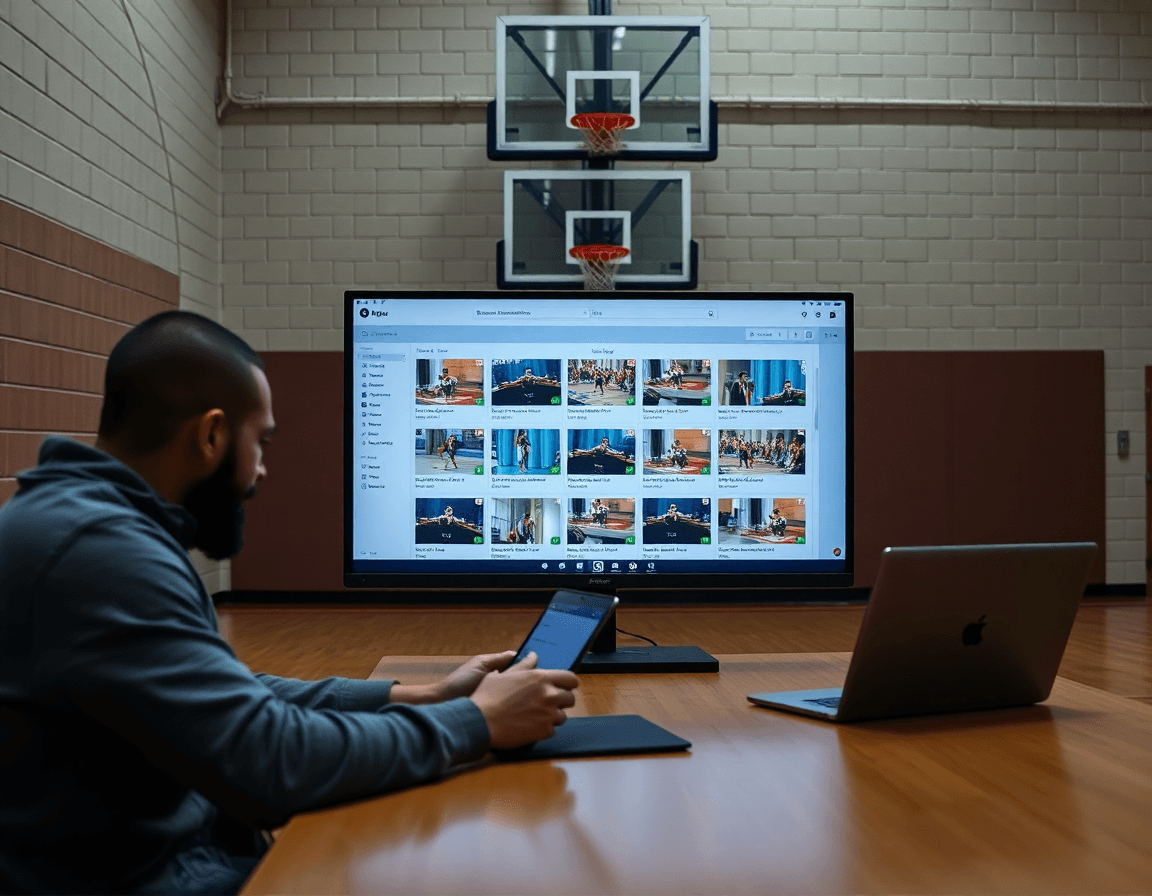
Each week I start with clipping game footage and drills, then tagging each clip by drill, sequence, or opponent. That tagging turns raw video footage into a searchable library you can skim between drills and huddles. The goal is a fast, on-the-floor reference: what we ran, what clicked, and what fell apart, all in one place for quick review.
From the library, I assemble playlists for practice reviews or player feedback. A few clips of a curl cut or a defensive rotation sit in one playlist, so the staff can walk through corrections during practice film. Playlists keep the workflow tight and give players concrete takeaways, without drowning anyone in hours of footage.
Share links or export MP4 clips for streaming across devices. I can send a shareable link to staff and players, or export MP4 clips so they play on laptops, tablets, or phones in the gym or on the bus. Use offline access to review clips in gyms without reliable internet, so the team can study concepts even when the connection sags.
All of this plugs into the weekly plan: clip, categorize, assemble, and review on the whiteboard or through a concise shot mapper. When the team rolls in for the next practice, the video library, the playlists, and the short clips are ready to guide a productive session, turning footage into clear coaching points.
Scouting reports and opponent plays in one workspace
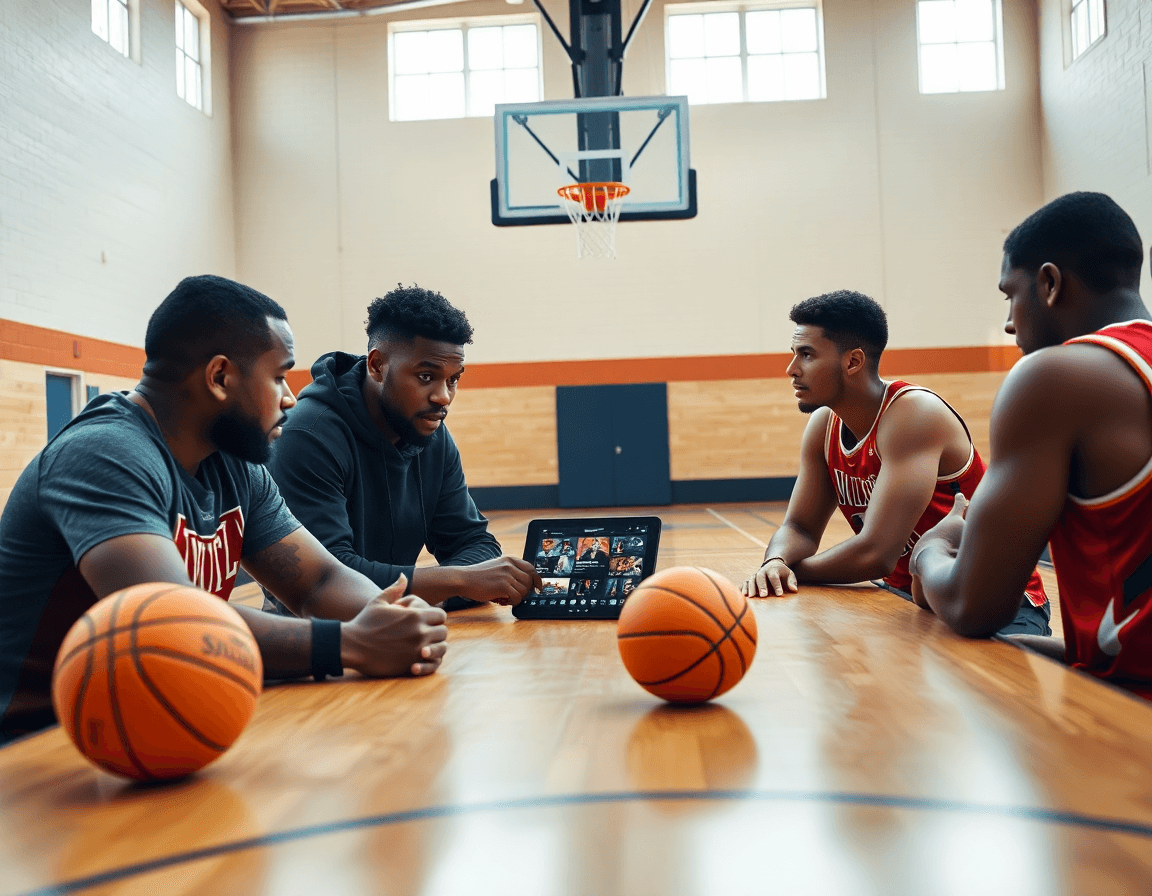
In a typical week, scouting sits at the center of my workflow. I open a centralized workspace and start with a reusable template to log opponent tendencies. I jot down what matters most—transition habits, ball-screen actions, and late-clock tendencies—so the rest of the week has a north star. All notes live in one place, easy to update as we study film and track trends.
With tendencies logged, I attach counter-plays or suggested adjustments to the upcoming games. These live next to the relevant plays on the whiteboard and in the plan for practice, so staff can see how we defend and attack. This keeps our game plan honest and responsive, even as the data evolves from each new clip.
When it’s time to share, I export the scouting reports as PDFs for staff meetings or recruit briefings. The PDFs stay readable and portable, whether I’m walking through a board room or sharing a folder with assistants. I also link notes to the plays and practice plans so a coach or recruiter can jump straight to the exact diagram or drill that supports the point.
The real win is how notes bridge to action: each scouting note links to a few specific plays and a short drill in the plan. If I identify an opponent who prefers a certain action out of PnR, I tag the play on the whiteboard and tie it to a practice segment the players will actually run. That creates a clean, coach-friendly workflow where scouting, planning, and execution stay in sync.
Create shareable playlists for players and assistants
After practice, I open the playmaker app and assemble a few playlists: one on defensive setups, another on offensive sequences. My weekly routine comes together here: I pull clips from today’s session, tag them, and drop them into a dedicated playlist. The flow from the plan on the whiteboard to video is fast and clear, keeping ideas organized.
Shareable links are the game-changer. I generate a link for each playlist and send it to the staff channel and the player group chat. No login required—everyone can quick-view the clips without friction. This keeps scouting notes, practice reminders, and reads accessible to the right people, without layering on extra steps for my assistants or players.
Access controls let me decide who can view what, and the view history shows who opened which clip. Feedback loops become real as assistants and players drop short notes: “this cut needs a faster read” or “great spacing on that set.” I address the input in the next plan and refine the playlist accordingly, keeping accountability and improvement transparent.
Use playlists for post-practice reviews and pre-game walk-throughs. A post-practice playlist reinforces what we just covered; a pre-game walkthrough playlist guides the team through defensive shells, offensive sequences, and rotation priorities. The connected workflow—planning, whiteboard diagrams, and targeted video—keeps the week moving with intention.
Practical workflow: from plan to practice in one week
In a typical week, I start with weekly goals that line up with the roster and what we learn from scouting the upcoming opponent. The aim is to tighten ball movement, improve decision-making in the pick-and-roll, and lock in late-game habits early in the cycle. With my basketball playmaker app, I frame this plan across planning, tactics, and video in one place.
Step 2: Build a practice plan from your drill library and templates. I pull from the drill library, drop drills into the plan, and tune for time and player load.
Step 3: Diagram key plays and timing on the whiteboard before on-court work. I sketch BLOB/SLOB/ATO sequences and export a clean PDF that the staff can reference during drills.
Step 4: Clip relevant game footage and assemble into role-specific playlists. I grab clips that illustrate a guard’s decision in a pick-and-roll and group them into playlists tailored for each role, so players see exactly what to replicate.
Step 5: Compile scouting notes and counter-plays for the next opponent. I note tendencies, triggers, and the counter-actions we want to simulate in practice.
Step 6: Share plans, clips, and scouting with assistants and players; review after practice. A quick feedback loop—plans get comments, clips get questions, and the workflow stays clear for everyone.
Step 7: Reflect, adjust, and tailor the following week based on outcomes. I update the plan, refine rotations, and tighten the coaching loop for the next cycle.
If you build plans like this every week, CourtSensei keeps your drill library, whiteboard, and video clips in one place — try it free.
FAQ
What is a basketball playmaker app?
A basketball playmaker app is a coaching workspace that centralizes planning, diagramming plays, and video management. It lets you build practice plans, store drills, and share concepts with staff and players. You can sketch offensive sets, map sequences, and simulate reads against different defenses. It serves as a workflow hub from design to drills to scouting in one place.
How does a basketball playmaker app work?
Most apps combine a whiteboard-like surface with a drag-and-drop interface and a built-in digital library of plays and drills. You place avatars, adjust spacing, time actions, and save variations. The app keeps a single source of truth: diagrams, timing, and coaching notes, plus quick export options. You can link drills to plays and review on a tablet or laptop, which speeds up on-floor teaching.
Can I share plays with teammates using a basketball playmaker app?
Yes. Most apps let you publish shareable playlists of clips and concepts for players, with comments and version history. You can export to PDF handouts for the staff, or drop a shareable link so assistants and players review concepts on their devices. That makes pre-practice huddles faster and keeps everyone aligned.
Can I plan practices using a basketball playmaker app?
Yes. You can run a whole week from a weekly template that ties practice goals to the opponent and roster. Use a built-in drills library to populate sessions, then adjust for personnel. The app can schedule sessions, assign tasks to assistants, and export plans (PDF) for staff. This keeps your rhythm consistent and your coaching points sharp.
What features should a basketball play designer app have?
Prioritize a solid whiteboard for diagramming and a drag-and-drop interface to assemble sequences quickly. Look for a robust video library, timing annotations, and the ability to save variations. Strong export options (PDF, video) and easy sharing with staff keep coaching points clear. Scouting integration and opponent templates help you plan counter-moves without leaving the app.
How do I export plays to video or presentation format?
You’ll typically export as PDF handouts for on-court reference and as MP4 clips for practice review or presentations. Some apps also support shareable links or screen-record exports. Keep a consistent naming scheme for plays and make sure timing notes travel with the export. This lets you prep staff and players with compact, portable materials.
Which devices support basketball playmaker apps (iPad, Android, web)?
Most playmaker apps are cross‑platform: you’ll find versions for iPad, Android, and the web. Choose a solution that syncs across devices and supports offline access in gyms with spotty internet. That way you can diagram, teach, and review concepts whether you’re in the gym, on the bus, or back in the office.