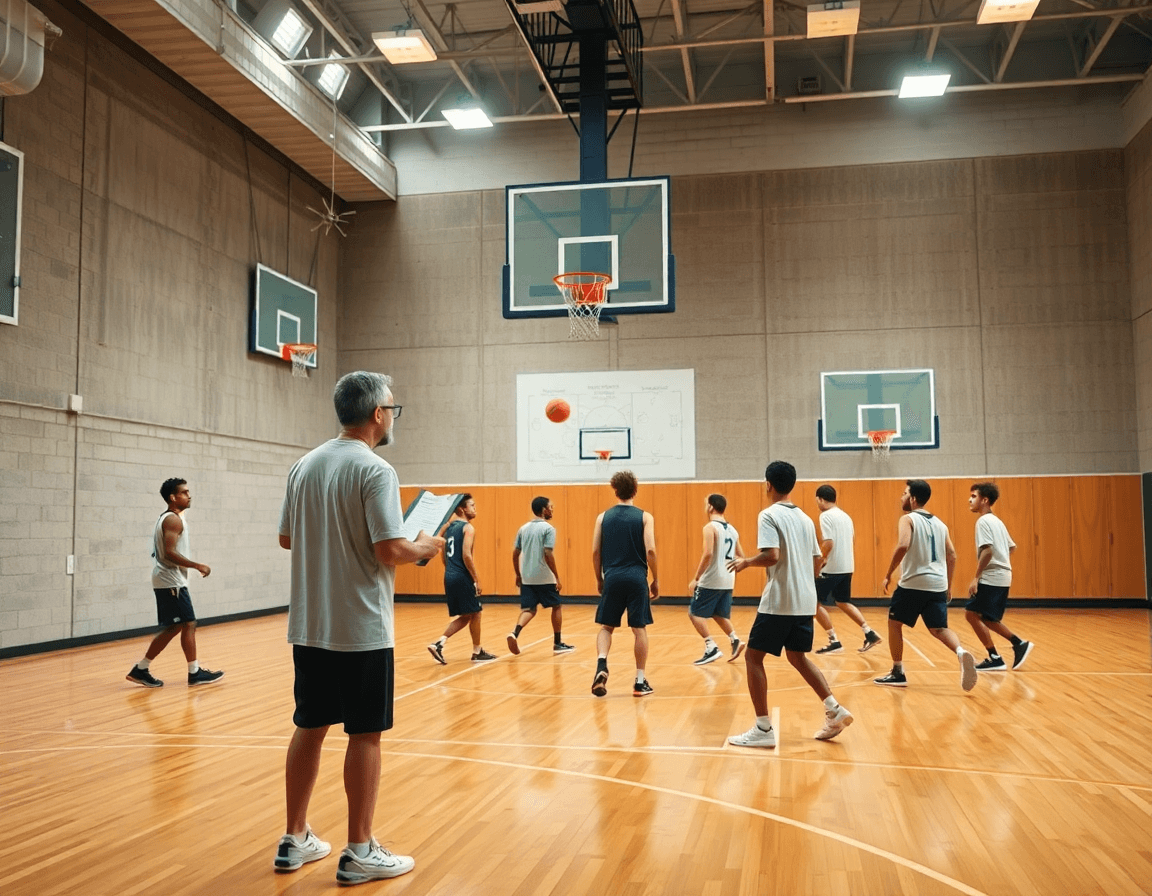
How to Plan Weekly Practices with Animated Basketball Players
Plan a week of practices using animated basketball players to visualize drills, diagram plays, and share video feedback with players for faster learning.

Key takeaways
- Leverage a centralized planning library of drills, mapping Monday to Friday goals with animated assets.
- Link assets to progression milestones, keeping the crew aligned and reducing real-time rewrites.
- Use short animated scenes beside drills to reinforce spacing and timing before reps.
- Pair plans with quick video clips, 4K/1080p, to illustrate sequences in action.
- Create playlists for feedback, linking clips to drills, and distribute concise notes for self-review.
How to plan a weekly practice with animated basketball players
How to plan weekly practice with animated basketball players
As a coach who depends on a tight weekly rhythm, I start by opening the asset-backed drill library. This is the core of how to plan weekly practice with animated basketball players: map Monday through Friday goals, pulling drills that reinforce spacing, decision-making, and shot timing. The animated players give us a clear, repeatable visual cue during early planning, so assistants know exactly what to emphasize in each session.
Next, I link the animated assets to specific drills and progression milestones in the plan. For example, a Monday shell period ramps from 3-on-2 to 4-on-3, and the animation shows the exact positions and reads for every cut. By tying those assets to progression milestones, we keep the crew aligned on expectations—and we can adjust the plan without rewriting every drill in real time.
Each practice block gets a visual cue that reinforces the goal. A short animated scene sits alongside the drill on the plan and on the whiteboard diagrams, helping players visualize spacing and movement before we start reps. This visual support makes our tactical notes more tangible, and it translates smoothly into PDF exports for the staff huddle.
We pair the plan with a quick video clip to illustrate a sequence in action. Clip options range from stock video in 4K or 1080p, with royalty-free or premium motion graphics and clean 2D animation overlays. These clips live in playlists or as shareable links so assistants and players can review transitions and timing between drills.
This is the essence of a cohesive, coach-centric workflow: planning library, whiteboard diagrams, video clips, and playlists, all connected to one weekly trajectory. The animated assets act as a reliable thread that ties every block together, from Monday’s spacing drill to Friday’s end-of-week review.
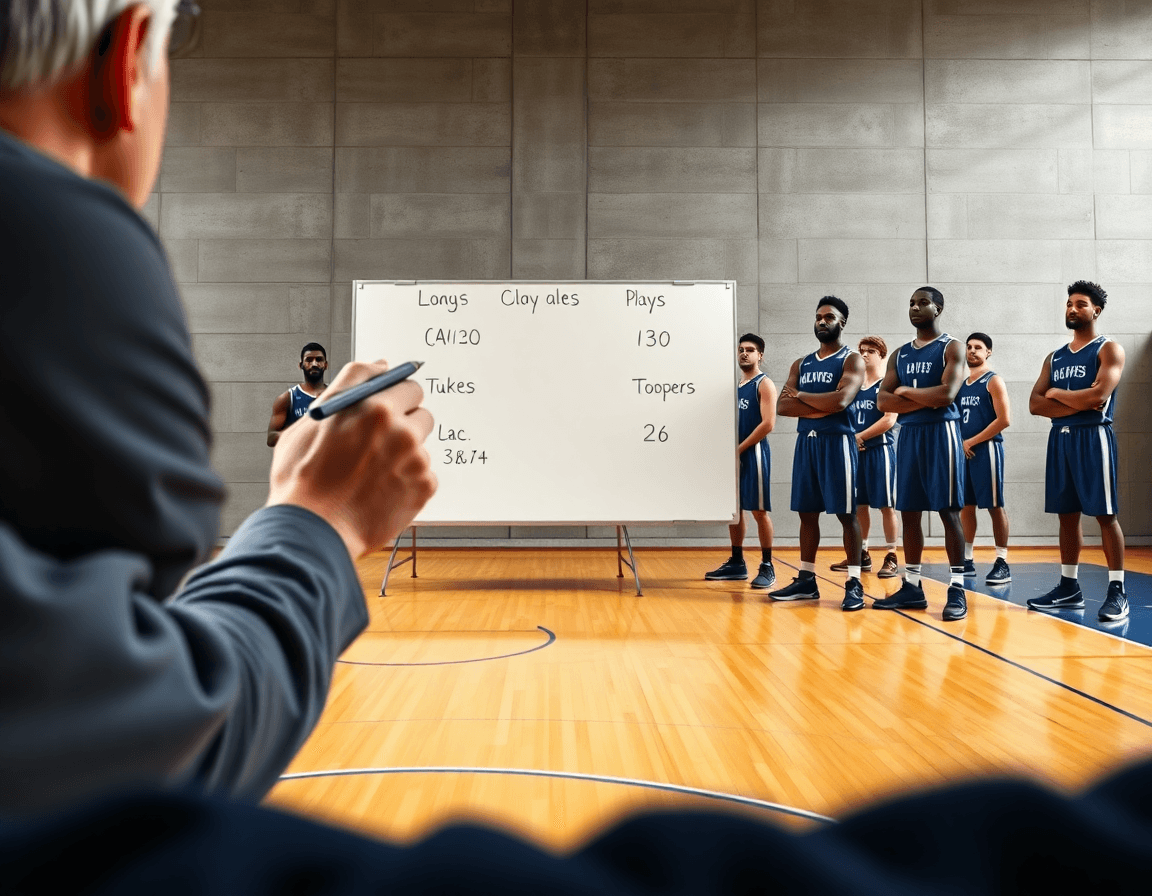
Diagram plays and offensive sets with animated assets on the whiteboard
During weekly planning, I diagram plays and offensive sets with animated assets on the whiteboard. The moving silhouettes show BLOB, SLOB, ATO, and PnR routes in real time, so I can spot spacing issues and timing gaps before we hit the floor. The animation makes reads and lanes tangible: cutters sprint, ball-enders slip, bigs set reads off the screen. A quick swap from a 4K motion graphic to a 1080p variant helps me test different alignments without rewriting the plan. This isn’t just pictures; it’s a dynamic way to walk through a play with the team before we practice. animated assets on the whiteboard keep the tempo crisp.
Once a diagram looks right, I export it as PDFs to include in scouting reports and practice handouts. The PDF preserves timing notes and route options, so assistants can reference it during drills and film study. I also sync the diagrams with the weekly plan, so players see the play in context when we review it at the start of practice. That cohesion keeps our tempo consistent and helps everyone keep their roles clear.
Using stock video and premium motion graphics keeps the library fresh without breaking the bank. For example, I pull 2D animation sequences in 4K or 1080p, mix in royalty-free clips, and drop them into a short video clip tied to the diagram. Players watch on tablets during warmups, then we reconcile the clip with the on-floor rotation in the plan, the whiteboard diagram matching the video. The result is a seamless workflow across our planning library, whiteboard, video clips, and playlists.
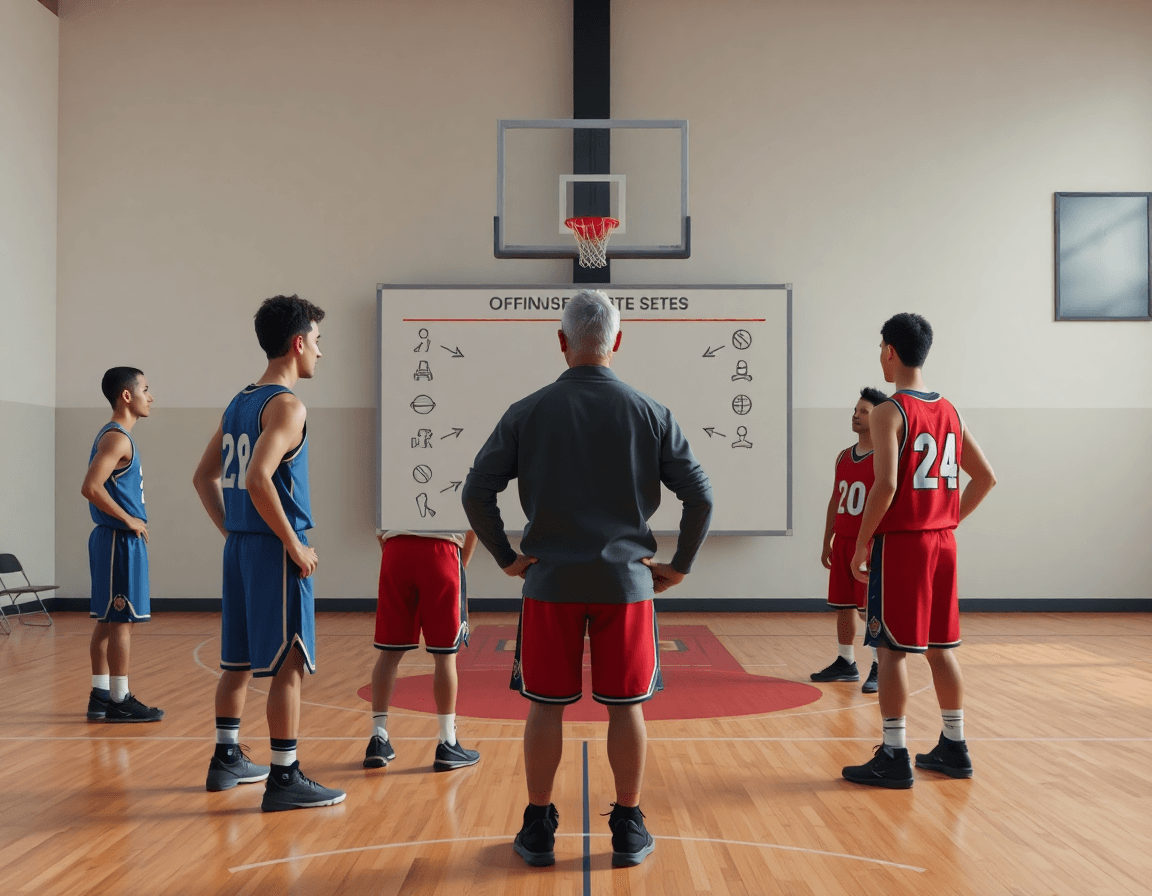
Create and share animated video clips for player feedback
As a head coach, I start by trimming game or practice footage to spotlight decision-making and technique. With animated overlays—showing routes, spacing, and read-and-react moments—you see exactly where the play broke down. Using animated basketball players helps players visualize movement without coaching jargon. If a drive collapses on a wing, an overlay highlights the cut and the correct pivot. This approach feeds into the weekly plan and links to the planning library and whiteboard discussions.
Next, I organize clips into playlists tied to drills, concepts, or goals. A clip from last Friday’s scrimmage might become part of a playlist labeled “Decision-Making in Transition,” with a 45-second clip and a 15-second animated highlight. The playlists keep feedback focused; players know what to study and how it connects to the drill work on the floor. If you’re short on footage, you can pull in stock video—royalty-free 4K or 1080p—plus premium motion graphics for 2D animation to illustrate a concept. This is where the secondary assets—stock video and motion graphics—save time without diluting clarity.
Finally, share links with players for self-review and coaches’ notes without overwhelming them verbally. A simple link lets a player rewatch the animated clips on their own time, while you attach concise notes or a quick voiceover overlay. This keeps feedback actionable and scalable across the team. With CourtSensei, these clips live in your video library and remain linked to the relevant drill or scouting playlist, so the cycle—watch, reflect, adjust—happens weekly and stays focused on growth. If you’re wondering how to create and share animated video clips, this workflow keeps it practical and coach-ready.
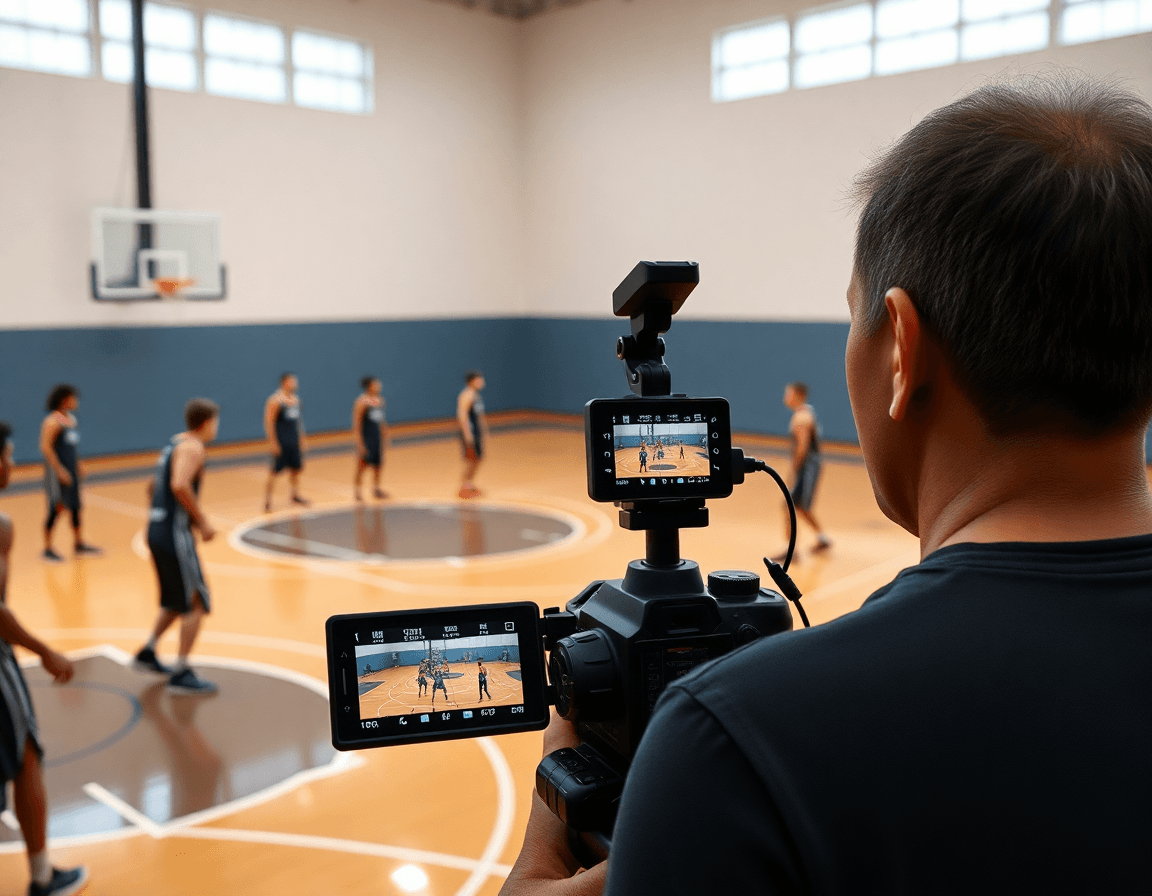
Scout smarter with animated assets to prep for opponents
Week-to-week, scouting is about turning notes into action. Overlaying animated basketball players on opponent tendencies lets you show gaps in rotations, spacing, and reaction patterns without naming a real team. Keep the visuals clean: a handful of players moving through a base set, with quick color cues for strength or vulnerability. This is the kind of tool that makes trends immediately understandable on the gym floor.
During weekly planning, drop these assets into the scouting library and tag them by opponent style (fast-break pressure, ball-screen reads). Use the whiteboard to map diagrams to clips: a screen-and-roll sequence in motion, an aerial view of spacing, a deny-on-ball scenario. The goal is a tight workflow that tells the staff what to watch, where to look, and how to adjust between games.
Attach these visuals to scouting reports for quick reference during game prep. Source a library of stock video—royalty-free options in 4K or 1080p, with premium motion graphics and solid 2D animation—to fill gaps or illustrate a trend. The goal is to have clear, shareable visuals that coaches can glance at and immediately understand, not a wall of static notes.
Export or share scouting clips as part of a prep package for the coaching staff. Create playlists and send shareable links to assistants or coordinators so everyone is on the same page. This is how you answer the question of how to prepare scouting with animated assets without getting bogged down in jargon.
Practical workflow: a 5-step daily routine for leveraging animated assets
Step 1: Curate a relevant library of animated assets for your squad. Start by pulling stock video and royalty-free 2D animation that map to the core actions your team runs—handoffs, back cuts, ball-screen pops, and sprinting routes. Tag assets by play type and decision point, so they slot right into your planning library. This is where you begin to build a targeted collection of animated basketball players you trust to illustrate concepts on the fly. Think in terms of 4K clarity or 1080p for crisp breakdowns, and mix in motion graphics when you need a quick visual cue during practice. A well-curated library becomes your fast-forward button for weekly plans.
Step 2: Plan drills and plays in your weekly schedule using these assets. In the plan, attach a specific animation to each drill or play to illustrate timing, spacing, and reads. Use the whiteboard to diagram moves (BLOB/SLOB/ATO/PnR) and export the diagram as a PDF for the staff binder. The assets help you show, not just tell, what you want to see in competition. This is where a practical checklist for using animated assets in weekly routine starts to take shape, guiding you through a clean, repeatable workflow that keeps everyone on the same page.
Step 3: Create annotated clips for targeted player feedback. Trim clips from recent sessions and annotate key decisions, angles, and footwork. Pair each clip with a brief caption or voiceover that calls out the exact timing where the asset demonstrates the desired read. Share these as short video clips within a playlist so players can review their performance during downtime. Think of it as a focused feedback loop using annotated video clips.
Step 4: Build scouting clips and opponent reports with visuals. Assemble clips that reveal opponent tendencies—ball-screen adjustments, transition angles, their weak spots in late-clock scenarios—and layer in animated overlays to highlight gaps. A clean set of scouting clips, bolstered by visuals, makes your reports more actionable and easier to digest during game prep.
Step 5: Review, adjust, and share for the next week. Revisit what worked, swap in new assets from your library, and update your drills accordingly. Publish updated playlists and shareable links with the coaching staff and players, so everyone enters the next week with a clear, cohesive plan. This cadence—review, adjust, and share—keeps the workflow for using animated assets in practice steady and coach-centric.
Asset management best practices: building a reusable library
As I map the week's practice in the planning library, the asset pool is my secret sauce. I lean on a curated set of stock video and motion graphics that feature animated basketball players in varied actions, including royalty-free 4K clips. These assets plug directly into the plan, the whiteboard diagrams, and the video clips I share with the staff. The result is a cohesive coach-centric workflow that translates to the floor.
Start with a simple rule: tag assets by drill type, position, and concept to speed up future planning. A clip labeled PnR with a guard and a big in a pick-and-roll quickly shows up on the whiteboard, then lands in a playlist for team review. Use both 2D animation and 3D animation where they fit—clear footwork, motion cues, and labeled diagrams help the players visualize assignments before they step on the floor.
Versioning matters. Maintain a clear history for edited clips—v1, v1.1, v2—with notes on edits and where the asset was used. Keep licensing compliance up to date, recording license type (royalty-free) and any restrictions. This isn’t about a single clip; it’s a reusable library that scales with your weekly schedule.
Finally, audits are a must. Regular checks keep the library aligned with your goals and schemes. If your defense shifts, prune outdated assets and refresh with relevant ones, so you can grab a premium or free stock clip without breaking the flow.
If you build plans like this every week, CourtSensei keeps your drill library, whiteboard, and video clips in one place — try it free.
FAQ
What are animated basketball players, and why should coaches use them?
Animated basketball players are digital, stylized figures you can drop into practice plans and whiteboard diagrams. They move through reads, spacing, and sets, so your coaching points read visually. Use them to anchor your weekly plan in the planning library and to walk through plays without long verbal explanations. They keep assistants aligned, speed up revisions, and help players visualize timing before reps.
Where can I find animated basketball players for practice planning or scouting boards?
Look for libraries that offer ready-made animated basketball players and overlays you can link to drills. Many coaches source them from asset stores, training platforms, or premium libraries and export PDFs or clips for whiteboards. Choose options that let you customize reads and spacing, then save them in a shared folder so your staff can reuse them in weekly plans and scouting boards.
Are animated basketball assets free to use, or do you need licenses?
Many animated assets are not free; licensing varies by provider. Some libraries offer royalty-free licenses for coaching purposes, while others require ongoing fees for commercial or client work. Look for terms that cover your use case (practice planning, PDFs, and staff sharing). If budget is tight, seek free samples but verify the license before using them publicly.
What formats do animated basketball assets come in, and which should I use for whiteboards and PDFs?
Assets come in formats like 4K or 1080p video, plus vector/2D animation and image overlays. For whiteboards and PDFs, use clips or JPEG/PNG overlays that you can embed, plus PDFs of diagrams. If you are looping plays, 4K gives flexibility for zoom; keep lower-res options for tablets to save bandwidth.
How do I edit or customize basketball animations to fit my playbook?
Start with a base animation and tailor it to your playbook by adjusting routes, spacing, and reads. Most tools let you swap player positions, speed up or slow down cuts, and dye routes by color. Export revised clips to your planning library and attach them to specific drills so everyone reviews the same cues before practice.
How do stock video and clipart differ for basketball animation, and when should I use each?
Stock video and clipart serve different needs. Stock video delivers real motion, lighting, and timing that feel authentic; clipart or vector overlays are cleaner, scalable, and faster to edit. Use stock clips when you want a realistic tempo or a game-like feel in your clips. Use clipart overlays for quick diagrams on whiteboards or PDFs where clarity matters more than realism.