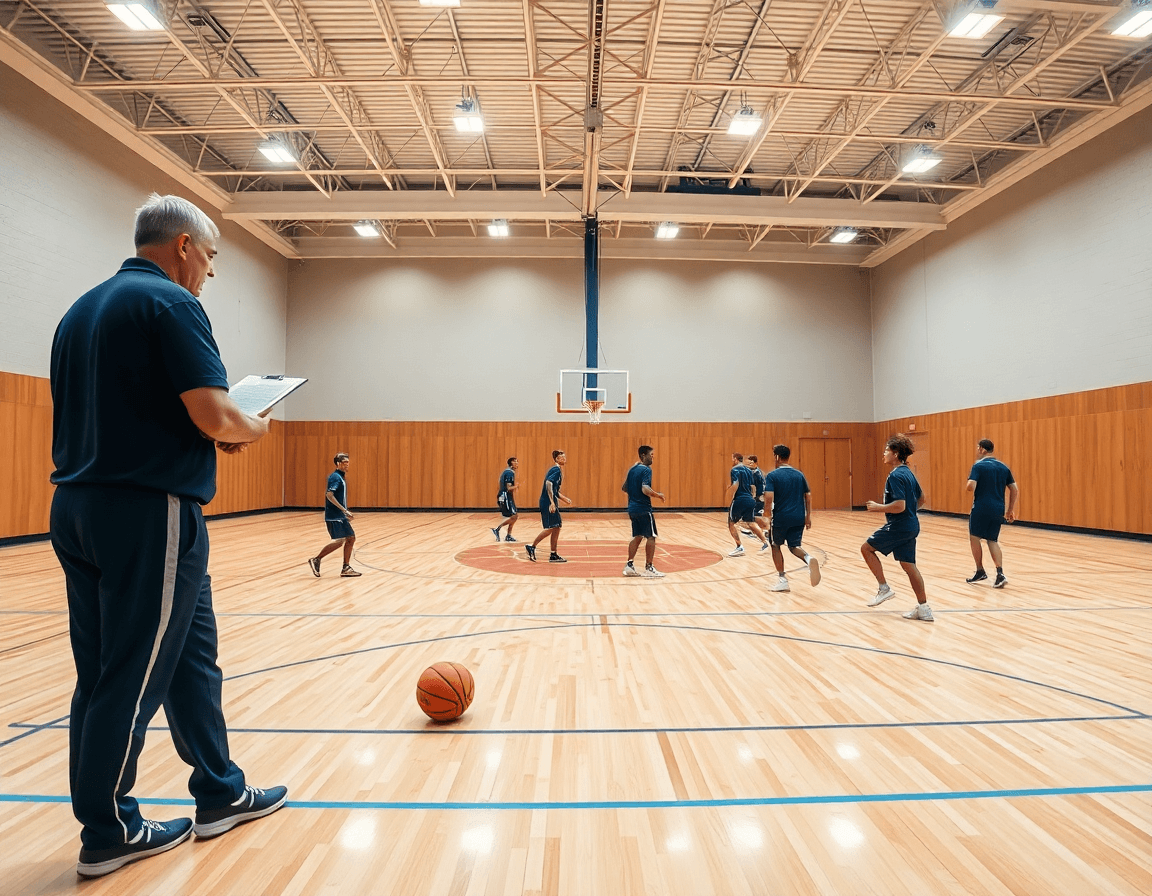
Basketball Dood for Coaches: Weekly Workflow
Learn how basketball dood concepts fit into a coach's weekly workflow—plan plays, diagram on the board, and organize clips and playbooks for practice.

Key takeaways
- Define clear weekly targets and map the top 3-5 plays to practice; doodles become actionable plans.
- Link each play to drills in your training plan library; emphasize footwork and decision timing.
- Diagram and save formations; prep quick videos and PDFs for staff, keeping the board readable.
- Integrate scouting notes with plays to tighten rotations and adapt reads on court.
- Create a pre-game checklist and film-review tie-ins; export shareable playbooks for staff.
How to plan basketball dood-inspired plays for the week
Kick off the week with clear aims: define your weekly targets and map the top 3-5 plays to the upcoming practice schedule. A basketball dood-inspired approach helps you get concepts on the board fast—draws that capture spacing, motion, and reads, then translate those doodles into concrete plan items. In CourtSensei, those ideas live as plan blocks that guide warm-ups, shell work, and team timing, so the flow from drill to decision stays readable at a glance.
Link each play to the corresponding drills and conditioning work using your training plan library. For every concept, pick simple drills that build the required footwork, decision timing, and body control. Schedule those drills under the weekly plan so the tempo nudges players toward the action shown in the doodle. If a movement is unclear, swap the drill before it becomes a habit—this keeps the weekly cycle sharp and repeatable.
Decide which plays to diagram, save as formations, and prep for practice. Create a quick video clip or sequence to illustrate the flow, attach it to the play, and export a shareable playbook and PDFs for the staff. The coaching workspace keeps the doodles and the text tied together—custom court backgrounds, move on court actions, and a clear path from first cut to execution. This is how a weekly plan turns into ready-to-run practice.
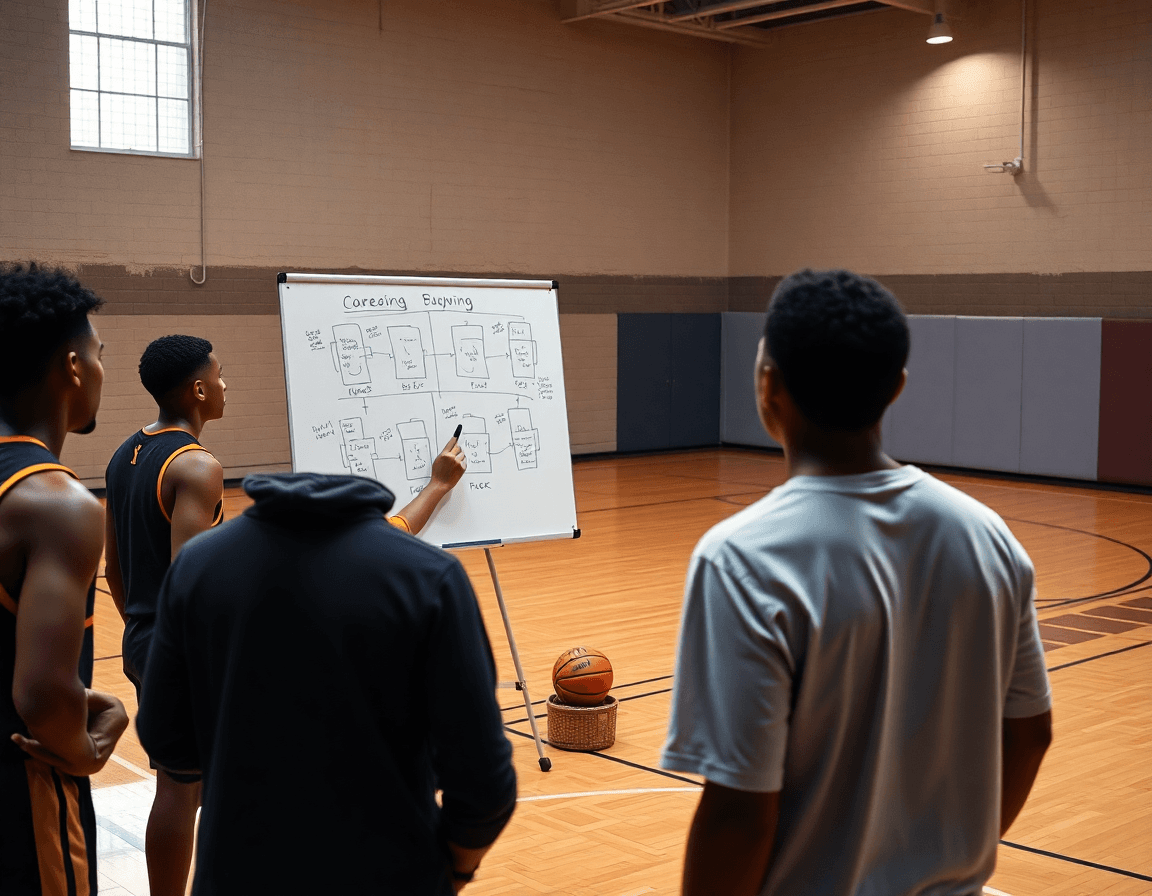
Diagram and annotate key actions on a coaching board
Think of your coaching board as a basketball dood that communicates quickly. Use simple shapes to diagram plays to show routes and assignments; arrows for cuts, circles for spots, lines for spacing. Annotate reads and options right on the diagram so staff and players see the exact decision point. This approach keeps your weekly plan lean and legible, whether you’re on the sideline or in the film room.
Build a reusable library of diagrams for future weeks. Save variations for different opponents, base plays, or late-game setups. Tag them by situation so you can pull a diagram from the library in seconds. This becomes your coaching clipboard—a go-to resource that grows as your playbook expands. Include quick annotation on each diagram to capture reads and counters.
Export images for PDFs or printouts to share with staff. This makes it easy to hand out the coaching board shot to assistants or to include in your scouting packet. If you ever need to illustrate a motion in a meeting, attach a short video clip alongside the diagram, or use share animations to show the sequence. You can even swap in a custom court background to give the scene a familiar feel.
Keep the workflow tight: link each diagram to a play in your plan library, and use annotation during practice clips. With a centralized coaching board, you’ll move from concept to practice-ready diagrams faster each week.

Integrate video clips, cuts, and play animations into your plan
In your weekly workflow, attach video clips to plays to illustrate timing and spacing. You can pull clips from scouting footage or practice reps and link them directly to the play in your plan, so the timing of cuts, ball reversals, and off-ball movement are visible at a glance. This keeps your diagram and video in one place, so you can reference the clip while you walk through the drill on the floor.
Organize clips with consistent naming and playlists for quick reference. Use a clear naming convention for each clip (e.g., "P&R-1-Set-8") and assemble related clips into playlists like "pre-game scout" or "transition drills." When you open a play, you can jump straight to the relevant clips, avoiding hunting through folders. The result is a coaches clipboard that supports both design and fast communication with your staff.
Leverage play animations to demonstrate sequences during practice. Animations let you show the exact order of moves—screen setup, ball reversal, and timing—without verbal guesswork. You can run a quick simulated route on the court, with doodles and text to annotate options while your players move on court. Pair animations with short video clips for a layered explanation that makes basketball plays easier to grasp.

Build a scouting and game-prep section for the week
Think of the weekly scouting section as a basketball dood—a compact, visual way to translate film notes into on-court actions. In the central hub, place your scouting notes and clearly tag the team’s opponent tendencies, then tie those insights to the plays you’ll run and the drills you’ll rehearse during the week. This keeps planning grounded in what can actually be executed on the floor.
Link the scouting context to the plays and drills in the weekly plan. For every opponent cue, attach a scouting note to relevant basketball plays and plays and drills in the training library. The result is a clean thread from how the opponent defends to the adjustments you coach—you’ll move players on court, tighten rotations, and annotate with quick doodles beside the diagrams.
Create a pre-game checklist to guide practice and film review. Include items like a final look at opponent tendencies, confirmation of defensive calls, and rotations, plus a quick clip review of their top three sets. Tie each item to specific drills in the plan so the group rehearses the changes and you can compare notes after film review.
Finish with the visuals: doodles and text on diagrams, attach video, and export shareable playbooks and PDFs. A custom court background can highlight critical zones, and a digital coaches clipboard makes distribution to assistants fast and clear. When the week wraps, the scouting and game-prep section is ready to roll for the next opponent.
Share, review, and iterate with staff using links and reports
Think of the week as a single, clean flow: plan, diagram plays, attach video, and export a shareable playbook. With read-only links, the weekly basketball dood-inspired plan can circulate to assistants for feedback without risk of accidental edits. Diagrams stay crisp, videos stay linked, and all of it lives inside one coaching workspace. That frictionless setup makes the plan consistent across sessions and easy to hand out a polished PDF package to staff before the first drill starts.
Schedule quick reviews and track changes week over week. Set a short mid-week window for feedback; assistants open the link, leave notes on each play or drill, and the coach compares versions from last week to this week. The system highlights changes so nothing slips through the cracks. When a doodle evolves into a diagram with arrows, a quick note updates the record and the team stays aligned for the next session. This is genuine staff collaboration in action.
All assets—plans, clips, and notes—live in one coaching workspace, so a staff member can pull up the entire sequence in seconds. You can craft and share animations to show how to move players on court, using a custom court background, attach the relevant video clip, and annotate with doodles and text right on the diagram. When ready, export a clean playbook PDF to circulate ahead of the next practice.
With read-only links and clear iteration, the weekly cycle becomes predictable: circulate, review, iterate. A quick link sends out the plan, feedback lands in the workspace, and by next week the plan moves forward with updated doodles and crisper plays.
Practical workflow: from plan to PDF export
Think of your weekly workflow as a deliberate cycle: plan, diagram, clip, scout, export, share. CourtSensei is the central hub for basketball dood-inspired routines—where planning, play diagrams, and video live side by side. This approach fits neatly into a single coaching workspace and keeps your week organized.
Step one: create the plan in the training plan library. From there, you diagram plays with doodles and text on a custom court background to map movements and spacing. Keeping everything in the training plan library and diagram plays reduces switching between apps.
Next, attach clips from the week’s practice and add scouting notes alongside the action. The goal is a compact, on-field coaching clipboard where action diagrams, clips, and notes live together—ready for quick reference during a tactical huddle. This is your coaches clipboard pair with the notes you gathered.
Export to PDF export for print-ready playbooks, or share via read-only links so players can review on their own device. The PDF export creates crisp diagrams and labeled steps you can hand to small groups or position units on the court. Use the PDF export and read-only links to circulate.
Maintain a weekly checklist to lock in the cycle—plan today, diagram today, clip today, scout today, export today, share today. This keeps your workflow consistent across practice blocks and the weekly cycle. Use exports to print playbooks or share with players via read-only links.
FAQ
What is Basketball Dood and what does it do?
Basketball Dood is CourtSensei's visual play-design tool for coaches. It lets you draw and animate on-court actions, build time-structured weekly plans, and curate a library of plays and drills. You sketch spacing, reads, and motion, then turn those doodles into concrete plan items, PDFs, and a shareable playbook that staff can follow.
How do you create and share basketball plays in Basketball Dood?
Start with a simple diagram on your coaching board, add arrows and notes to show routes and reads, and link the diagram to drills in your training plan library. For easy sharing, attach a short video or sequence to the play, export a shareable playbook, and send a read-only link to staff.
Is Basketball Dood available on Android and iOS, and what platforms are supported?
CourtSensei is accessed through the coaching workspace in your browser, on any device with a modern browser. There isn’t a standalone Android or iOS app listed. This setup keeps diagrams, clips, and PDFs centralized so you can plan, annotate, and share from a laptop, tablet, or desktop.
Can I customize the court background in Basketball Dood and save my plays as animations?
You can customize the court background and save plays as aligned formations within your workspace. Draw the diagram, attach an animation, and re-save as a formation for future use. The combination of custom court backgrounds and doodle-based actions helps illustrate timing and spacing while keeping practices consistent week to week.
Can Basketball Dood export plays as a video or share animations by email?
Basketball Dood supports sharing through read-only links, PDFs, and a shareable playbook. You can attach short video clips or animations to a play for context. Direct video export isn’t listed, but you can provide players and staff with a clear, linked reference that pairs diagrams with clips.
When was the last update for Basketball Dood and is it still supported?
Update timing and ongoing support are handled through CourtSensei’s standard update cadence. For the latest details, check in-app release notes or the product blog. The platform is designed to stay current for coaching workflows, including weekly planning, diagrams, and shared playbooks.
What are the main features of Basketball Dood compared to other playbook apps?
Basketball Dood emphasizes time-structured planning and a centralized library of drills, with direct linkages between diagrams, videos, and scouting material. It helps you move from concept to practice-ready diagrams quickly, export PDFs for staff, and share updates with links—without relying on AI analysis.